> ## Documentation Index
> Fetch the complete documentation index at: https://qianyios.mintlify.site/llms.txt
> Use this file to discover all available pages before exploring further.
# 2.文件管理和IO重定向
## **文件系统目录结构**
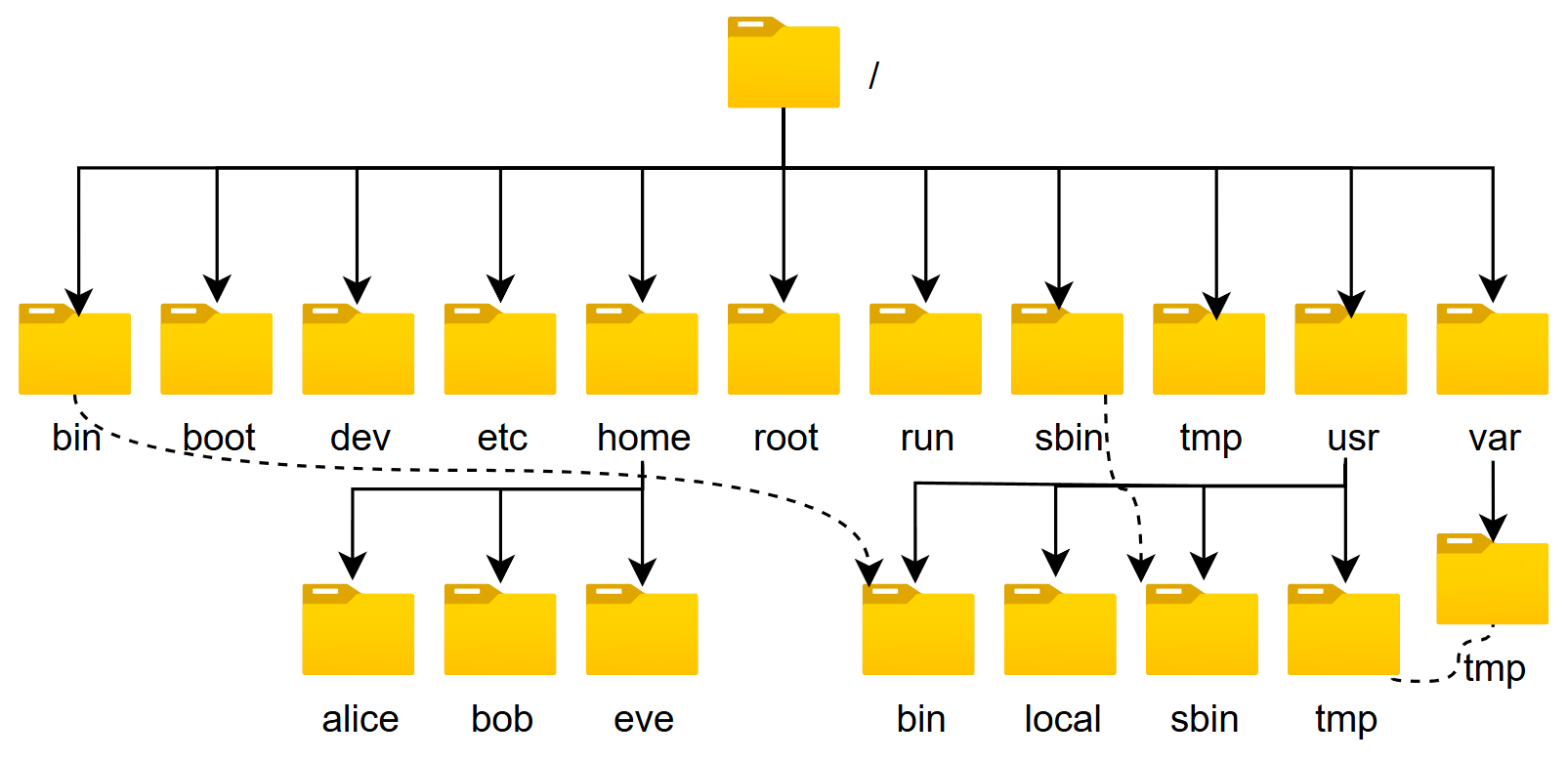 ### **文件系统的目录结构**
文件和目录被组织成一个`单根`倒置树结构
文件系统从根目录下开始,用“`/`”表示
根文件系统(rootfs):root filesystem
标准Linux文件系统(如:`ext4`),文件名称大小写敏感,例如:MAIL, Mail, mail, mAiL
以 `.` 开头的文件为隐藏文件
路径分隔的 `/`
文件名最长255个字节
包括路径在内文件名称最长4095个字节
`蓝色-->目录` `绿色-->可执行文件` `红色-->压缩文件` `浅蓝色-->链接文件` `灰色-->其他文件`
除了斜杠和NUL,所有字符都有效.但使用特殊字符的目录名和文件不推荐使用,有些字符需要用引号来引用
每个文件都有两类相关数据:元数据:metadata,即属性, 数据:data,即文件内容
Linux的文件系统分层结构:FHS Filesystem Hierarchy Standard
### **常见的文件系统目录功能**
`/boot`:引导文件存放目录,内核文件(vmlinuz)、引导加载器(bootloader, grub)都存放于此目录
`/bin`:所有用户使用的基本命令;不能关联至独立分区,OS启动即会用到的程序
`/sbin`:管理类的基本命令;不能关联至独立分区,OS启动即会用到的程序
`/lib`:启动时程序依赖的基本共享库文件以及内核模块文件(/lib/modules)
`/lib64`:专用于x86\_64系统上的辅助共享库文件存放位置
`/etc`:配置文件目录
`/home/USERNAME`:普通用户家目录
`/root`:管理员的家目录
`/media`:便携式移动设备挂载点
`/mnt`:临时文件系统挂载点
`/dev`:设备文件及特殊文件存储位置
b: block device,随机访问
c: character device,线性访问
`/opt`:第三方应用程序的安装位置
`/srv`:系统上运行的服务用到的数据
`/tmp`:临时文件存储位置
`/usr`: universal shared, read-only data
bin: 保证系统拥有完整功能而提供的应用程序
sbin:
lib:32位使用
lib64:只存在64位系统
include: C程序的头文件(header files)
share:结构化独立的数据,例如doc, man等
local:第三方应用程序的安装位置
bin, sbin, lib, lib64, etc, share
`/var`: variable data files
cache: 应用程序缓存数据目录
lib: 应用程序状态信息数据
local:专用于为/usr/local下的应用程序存储可变数据
lock: 锁文件
log: 日志目录及文件
opt: 专用于为/opt下的应用程序存储可变数据
run: 运行中的进程相关数据,通常用于存储进程pid文件
spool: 应用程序数据池
tmp: 保存系统两次重启之间产生的临时数据
`/proc`: 用于输出内核与进程信息相关的虚拟文件系统
`/sys:`用于输出当前系统上硬件设备相关信息虚拟文件系统
`/selinux`: security enhanced Linux,selinux相关的安全策略等信息的存储位置
### **应用程序的组成部分**
二进制程序:/bin, /sbin, /usr/bin, /usr/sbin, /usr/local/bin, /usr/local/sbin
库文件:/lib, /lib64, /usr/lib, /usr/lib64, /usr/local/lib, /usr/local/lib64
配置文件:/etc, /etc/DIRECTORY, /usr/local/etc
帮助文件:/usr/share/man, /usr/share/doc, /usr/local/share/man,
/usr/local/share/doc
### Linux下的文件类型
`-` 普通文件 `d` 目录文件directory `l` 符号链接文件link `b` 块设备block `c` 字符设备character `p` 管道文件pipe `s` 套接字文件socket
```bash theme={null}
[root@centos7 ~]#ls -l /run/
drwxr-xr-x 2 root root 100 Dec 9 20:41 abrt
-rw------- 1 root root 11 Dec 9 20:41 alsactl.pid
prw------- 1 root root 0 Dec 9 20:41 autofs.fifo-net
srw-rw-rw- 1 root root 0 Dec 9 20:41 gssproxy.sock
```
## **文件操作命令**
### **显示当前工作目录**
每个shell和系统进程都有一个当前的工作目录 CWD:current work directory
显示当前shell CWD的绝对路径
`pwd`命令: printing working directory
-P 显示真实物理路径
-L 显示链接路径(默认)
### **绝对和相对路径**
绝对路径
以正斜杠/ 即根目录开始
完整的文件的位置路径
可用于任何想指定一个文件名的时候
相对路径名
不以斜线开始
一般情况下,是指相对于当前工作目录的路径,特殊场景下,是相对于某目录的位置
可以作为一个简短的形式指定一个文件名
基名:basename,只取文件名而不要路径
目录名:dirname,只取路径,不要文件名
范例:
```bash theme={null}
[root@centos8 bin]#basename /etc/sysconfig/network
network
[root@centos8 bin]#dirname /etc/sysconfig/network
/etc/sysconfig
[root@centos8 ~]#dirname /etc/sysconfig/network-scripts/ifcfg-eth0
/etc/sysconfig/network-scripts
[root@centos8 ~]#basename /etc/sysconfig/network-scripts/ifcfg-eth0
ifcfg-eth0
[root@ubuntu2004 ~]#basename http://nginx.org/download/nginx-1.18.0.tar.gz
nginx-1.18.0.tar.gz
[root@ubuntu2004 ~]#basename http://nginx.org/download/nginx-1.18.0.tar.gz
.tar.gz
nginx-1.18.0
[root@ubuntu2004 ~]#basename -s .tar.gz http://nginx.org/download/nginx-
1.18.0.tar.gz
nginx-1.18.0
[root@ubuntu2004 ~]#url=http://nginx.org/download/nginx-1.18.0.tar.gz
[root@ubuntu2004 ~]#echo $url
http://nginx.org/download/nginx-1.18.0.tar.gz
[root@ubuntu2004 ~]#basename $url
nginx-1.18.0.tar.gz
```
### **更改目录**
命令 cd : change directory 改变目录
选项:-P 切换至物理路径,而非软链接目录
可以使用绝对或相对路径
切换至父目录: cd ..
切换至当前用户主目录: cd
切换至以前的工作目录: cd -
范例:
```bash theme={null}
[root@centos8 ~]#cd /etc/sysconfig
[root@centos8 sysconfig]#pwd
/etc/sysconfig
[root@centos8 sysconfig]#cd ../../data
[root@centos8 data]#pwd
/data
[root@centos8 data]#cd /bin
[root@centos8 bin]#pwd
/bin
[root@centos8 bin]#cd -P /bin
[root@centos8 bin]#pwd
/usr/bin
```
相关的环境变量:
PWD:当前目录路径
OLDPWD:上一次目录路径
范例:
```bash theme={null}
[root@centos8 ~]#echo $OLDPWD
/etc/sysconfig
[root@centos8 ~]#cd -
/etc/sysconfig
[root@centos8 sysconfig]#pwd
/etc/sysconfig
[root@centos8 sysconfig]#
```
### **列出目录内容**
ls 命令可以列出当前目录的内容或指定目录
用法:
```bash theme={null}
ls [options] [files_or_dirs]
```
常见选项:
```bash theme={null}
-a 包含隐藏文件
-l 显示额外的信息
-R 目录递归
-ld 目录和符号链接信息
-1 文件分行显示
-S 按从大到小排序
-t 按mtime排序
-u 配合-t选项,显示并按atime从新到旧排序
-U 按目录存放顺序显示
-X 按文件后缀排序
-F 对不同类型文件显示时附加不同的符号:*/=>@|
-C 文件多时,以多列的方式显示文件,默认是一列(标准输出)
```
> ls 查看不同后缀文件时的颜色由 /etc/DIR\_COLORS 和@LS\_COLORS变量定义
>
> ls -l 看到文件的大小,不一定是实际文件真正占用空间的大小
```bash theme={null}
[root@centos8 ~]#vim /etc/DIR_COLORS
.jpg 01;31 #修改此行
[root@centos8 ~]#exit
[root@centos8 ~]#echo $LS_COLORS
rs=0:di=01;34:ln=01;36:mh=00:pi=40;33:so=01;35:do=01;35:bd=40;33;01:cd=40;33;01:
or=40;31;01:mi=01;05;37;41:su=37;41:sg=30;43:ca=30;41:tw=30;42:ow=34;42:st=37;44
:ex=01;32:*.tar=01;31:*.tgz=01;31:*.arc=01;31:*.arj=01;31:*.taz=01;31:*.lha=01;3
1:*.lz4=01;31:*.lzh=01;31:*.lzma=01;31:*.tlz=01;31:*.txz=01;31:*.tzo=01;31:*.t7z
=01;31:*.zip=01;31:*.z=01;31:*.dz=01;31:*.gz=01;31:*.lrz=01;31:*.lz=01;31:*.lzo=
01;31:*.xz=01;31:*.zst=01;31:*.tzst=01;31:*.bz2=01;31:*.bz=01;31:*.tbz=01;31:*.t
bz2=01;31:*.tz=01;31:*.deb=01;31:*.rpm=01;31:*.jar=01;31:*.war=01;31:*.ear=01;31
:*.sar=01;31:*.rar=01;31:*.alz=01;31:*.ace=01;31:*.zoo=01;31:*.cpio=01;31:*.7z=0
1;31:*.rz=01;31:*.cab=01;31:*.wim=01;31:*.swm=01;31:*.dwm=01;31:*.esd=01;31:*.jp
g=01;31:*.jpeg=01;35:*.mjpg=01;35:*.mjpeg=01;35:*.gif=01;35:*.bmp=01;35:*.pbm=01
;35:*.pgm=01;35:*.ppm=01;35:*.tga=01;35:*.xbm=01;35:*.xpm=01;35:*.tif=01;35:*.ti
ff=01;35:*.png=01;35:*.svg=01;35:*.svgz=01;35:*.mng=01;35:*.pcx=01;35:*.mov=01;3
5:*.mpg=01;35:*.mpeg=01;35:*.m2v=01;35:*.mkv=01;35:*.webm=01;35:*.ogm=01;35:*.mp
4=01;35:*.m4v=01;35:*.mp4v=01;35:*.vob=01;35:*.qt=01;35:*.nuv=01;35:*.wmv=01;35:
*.asf=01;35:*.rm=01;35:*.rmvb=01;35:*.flc=01;35:*.avi=01;35:*.fli=01;35:*.flv=01
;35:*.gl=01;35:*.dl=01;35:*.xcf=01;35:*.xwd=01;35:*.yuv=01;35:*.cgm=01;35:*.emf=
01;35:*.ogv=01;35:*.ogx=01;35:*.aac=01;36:*.au=01;36:*.flac=01;36:*.m4a=01;36:*.
mid=01;36:*.midi=01;36:*.mka=01;36:*.mp3=01;36:*.mpc=01;36:*.ogg=01;36:*.ra=01;3
6:*.wav=01;36:*.oga=01;36:*.opus=01;36:*.spx=01;36:*.xspf=01;36:
```
范例:别名ll
```bash theme={null}
[root@centos8 ~]#alias ll
alias ll='ls -l --color=auto'
[root@ubuntu ~]#alias ll
alias ll='ls -alF'
```
### **查看文件状态** **stat**
文件相关信息:metadata, data
每个文件有三个时间戳:
access time 访问时间,atime,读取文件内容
modify time 修改时间,mtime,改变文件内容(数据)
change time 改变时间,ctime,元数据发生改变
```bash theme={null}
[root@centos8 ~]#stat /etc/passwd
File: /etc/passwd
Size: 1306 Blocks: 8 IO Block: 4096 regular file
Device: 802h/2050d Inode: 134792556 Links: 1
Access: (0644/-rw-r--r--) Uid: ( 0/ root) Gid: ( 0/ root)
Access: 2019-12-09 20:37:12.830991350 +0800
Modify: 2019-12-09 20:37:12.826991351 +0800
Change: 2019-12-09 20:37:12.826991351 +0800
Birth: -
```
### **确定文件内容**
文件可以包含多种类型的数据,使用file命令检查文件的类型,然后确定适当的打开命令或应用程序使用
格式:
```bash theme={null}
file [options] ...
```
常用选项:
```bash theme={null}
-b 列出文件辨识结果时,不显示文件名称
-f filelist 列出文件filelist中文件名的文件类型
-F 使用指定分隔符号替换输出文件名后默认的”:”分隔符
-L 查看对应软链接对应文件的文件类型
--help 显示命令在线帮助
```
范例:windows的文本格式和Linux的文本格式的区别
```bash theme={null}
[root@centos8 data]#cat linux.txt
a
b
c
[root@centos8 data]#cat win.txt
a
b
c
[root@centos8 data]#file win.txt linux.txt
win.txt: ASCII text, with CRLF line terminators
linux.txt: ASCII text
[root@centos8 data]#hexdump -C linux.txt
00000000 61 0a 62 0a 63 0a |a.b.c.|
00000006
[root@centos8 data]#hexdump -C win.txt
00000000 61 0d 0a 62 0d 0a 63 |a..b..c|
00000007
#安装转换工具
[root@centos8 data]#dnf -y install dos2unix
#将Windows的文本格式转换成的Linux文本格式
[root@centos8 data]#dos2unix win.txt
dos2unix: converting file win.txt to Unix format...
[root@centos8 data]#file win.txt
win.txt: ASCII text
#将Linux的文本格式转换成Windows的文本格式
[root@centos8 data]#unix2dos win.txt
unix2dos: converting file win.txt to DOS format...
[root@centos8 data]#file win.txt
win.txt: ASCII text, with CRLF line terminators
```
范例:转换文件字符集编码
```bash theme={null}
#显示支持字符集编码列表
[root@centos8 ~]#iconv -l
#windows7上文本默认的编码ANSI(GB2312)
[root@centos8 data]#file windows.txt
windows.txt: ISO-8859 text, with no line terminators
[root@centos8 data]#echo $LANG
en_US.UTF-8
#默认在linux无法正常显示文本内容
[root@centos8 data]#cat windows.txt
[root@centos8 data]#
#将windows7上文本默认的编码ANSI(GB2312)转换成UTF-8
[root@centos8 data]#iconv -f gb2312 windows.txt -o windows1.txt
[root@centos8 data]#cat windows1.txt
马哥教育[root@centos8 data]#ll windows1.txt
-rw-r--r-- 1 root root 12 Mar 23 10:13 windows1.txt
[root@centos8 data]#file windows1.txt
windows1.txt: UTF-8 Unicode text, with no line terminators
#将UTF-8转换成windows10上文本默认的编码ANSI(GB2312)
[root@centos8 data]#iconv -f utf8 -t gb2312 windows1.txt -o windows2.txt
[root@centos8 data]#file windows2.txt
windows2.txt: ISO-8859 text, with no line terminators
```
范例:
```bash theme={null}
[15:34:50 root@centos8 ~]#file linux.txt
linux.txt: ASCII text
[15:34:31 root@centos8 ~]#file windows.txt
windows.txt: ASCII text, with CRLF line terminators
#将windows的文本格式转换成Linux的文本格式
[15:35:26 root@centos8 ~]#dos2unix windows.txt
dos2unix: converting file windows.txt to Unix format...
[15:36:00 root@centos8 ~]#file windows.txt
windows.txt: ASCII text
```
范例:
```bash theme={null}
[root@centos8 ~]#cat list.txt
/etc/
/bin
/etc/issue
[root@centos8 ~]#file -f list.txt
/etc/: directory
/bin: symbolic link to usr/bin
/etc/issue: ASCII text
```
### 🌟文件通配符模式wildcard pattern
文件通配符可以用来匹配符合条件的多个文件,方便批量管理文件
通配符采有特定的符号,表示特定的含义,此特符号称为元 meta 字符
常见的通配符如下:
```bash theme={null}
* 匹配零个或多个字符,但不匹配 "." 开头的文件,即隐藏文件
? 匹配任何单个字符,一个汉字也算一个字符
~ 当前用户家目录
~mage 用户mage家目录
[0-9] 匹配数字范围
[a-z] 一个字母
[A-Z] 一个字母
[wang] 匹配列表中的任何的一个字符
[^wang] 匹配列表中的所有字符以外的字符
[^a-z] 匹配列表中的所有字符以外的字符
. 和 ~+ 当前工作目录
~- 前一个工作目录
```
另外还有在Linux系统中预定义的字符类表示法如下:man 7 glob
```bash theme={null}
[:digit:]:任意数字,相当于0-9
[:lower:]:任意小写字母,表示 a-z
[:upper:]: 任意大写字母,表示 A-Z
[:alpha:]: 任意大小写字母
[:alnum:]:任意数字或字母
[:blank:]:水平空白字符
[:space:]:水平或垂直空白字符
[:punct:]:标点符号
[:print:]:可打印字符
[:cntrl:]:控制(非打印)字符
[:graph:]:图形字符
[:xdigit:]:十六进制字符
```
范例: \[ ] 和 \{ }
```bash theme={null}
[root@centos8 data]#ll f{1..5}
ls: cannot access 'f1': No such file or directory
ls: cannot access 'f2': No such file or directory
-rw-r--r-- 1 root root 0 Nov 7 09:34 f3
-rw-r--r-- 1 root root 0 Nov 7 09:34 f4
-rw-r--r-- 1 root root 0 Nov 7 09:34 f5
[root@centos8 data]#ll f[1-5]
-rw-r--r-- 1 root root 0 Nov 7 09:34 f3
-rw-r--r-- 1 root root 0 Nov 7 09:34 f4
-rw-r--r-- 1 root root 0 Nov 7 09:34 f5
[root@centos8 data]#ll f[a-c]
-rw-r--r-- 1 root root 0 Nov 7 09:46 fa
-rw-r--r-- 1 root root 0 Nov 7 09:46 fA
-rw-r--r-- 1 root root 0 Nov 7 09:46 fb
-rw-r--r-- 1 root root 0 Nov 7 09:46 fB
-rw-r--r-- 1 root root 0 Nov 7 09:46 fc
[root@centos8 data]#ll f{a..c}
-rw-r--r-- 1 root root 0 Nov 7 09:46 fa
-rw-r--r-- 1 root root 0 Nov 7 09:46 fb
-rw-r--r-- 1 root root 0 Nov 7 09:46 fc
```
范例:
```bash theme={null}
[root@centos8 data]#touch file{a..z}.txt file{A..Z}.txt file{0..9}.txt
[root@centos8 data]#ll file{0..9}.txt
-rw-r--r-- 1 root root 0 Mar 23 10:46 file0.txt
-rw-r--r-- 1 root root 0 Mar 23 10:46 file1.txt
-rw-r--r-- 1 root root 0 Mar 23 10:46 file2.txt
-rw-r--r-- 1 root root 0 Mar 23 10:46 file3.txt
-rw-r--r-- 1 root root 0 Mar 23 10:46 file4.txt
-rw-r--r-- 1 root root 0 Mar 23 10:46 file5.txt
-rw-r--r-- 1 root root 0 Mar 23 10:46 file6.txt
-rw-r--r-- 1 root root 0 Mar 23 10:46 file7.txt
-rw-r--r-- 1 root root 0 Mar 23 10:46 file8.txt
-rw-r--r-- 1 root root 0 Mar 23 10:46 file9.txt
[root@centos8 data]#ll file[0-9].txt
-rw-r--r-- 1 root root 0 Mar 23 10:46 file0.txt
-rw-r--r-- 1 root root 0 Mar 23 10:46 file1.txt
-rw-r--r-- 1 root root 0 Mar 23 10:46 file2.txt
-rw-r--r-- 1 root root 0 Mar 23 10:46 file3.txt
-rw-r--r-- 1 root root 0 Mar 23 10:46 file4.txt
-rw-r--r-- 1 root root 0 Mar 23 10:46 file5.txt
-rw-r--r-- 1 root root 0 Mar 23 10:46 file6.txt
-rw-r--r-- 1 root root 0 Mar 23 10:46 file7.txt
-rw-r--r-- 1 root root 0 Mar 23 10:46 file8.txt
-rw-r--r-- 1 root root 0 Mar 23 10:46 file9.txt
[root@centos8 data]#ls file[a-c].txt
filea.txt fileA.txt fileb.txt fileB.txt filec.txt
[root@centos8 data]#ls file[C-E].txt
fileC.txt filed.txt fileD.txt filee.txt fileE.txt
[root@centos8 data]#ls file[wang].txt
filea.txt fileg.txt filen.txt filew.txt
[root@centos8 data]#ls file[^wang].txt
```
范例:
```bash theme={null}
[root@centos8 data]#ls file[:lower:].txt
filee.txt filel.txt fileo.txt filer.txt filew.txt
[root@centos8 data]#ls file[[:lower:]].txt
filea.txt filed.txt fileg.txt filej.txt filem.txt filep.txt files.txt
filev.txt filey.txt
fileb.txt filee.txt fileh.txt filek.txt filen.txt fileq.txt filet.txt
filew.txt filez.txt
filec.txt filef.txt filei.txt filel.txt fileo.txt filer.txt fileu.txt
filex.txt
```
范例:比较有无\*的功能区别
```bash theme={null}
[root@centos8 data]#ls -a *
[root@centos8 data]#ls -a
```
范例:
```bash theme={null}
[root@centos8 ~]#ls -d /etc/*/
[root@centos8 ~]#l.
```
范例:
```bash theme={null}
[root@centos8 data]#touch file*.log
[root@centos8 data]#touch file1.log
[root@centos8 data]#ls file*.log
file1.log 'file*.log'
[root@centos8 data]#ls 'file*.log'
'file*.log'
[root@centos8 data]#ls 'file*.log'
```
### 练习
1、显示/etc目录下所有以l开头,以一个小写字母结尾,且中间出现至少一位数字的文件或目录列表
```bash theme={null}
[root@192 ~]# ls -d /etc/l*[0-9]*[a-z]
/etc/l123df21a
[root@192 ~]# ls -d /etc/l*[0-9]*[[:lower:]]
/etc/l123se123a
```
2、显示/etc目录下以任意一位数字开头,且以非数字结尾的文件或目录列表
```bash theme={null}
[root@192 ~]# ls /etc/[0-9]*[^0-9] -d
/etc/1aa
```
3、显示/etc/目录下以非字母开头,后面跟了一个字母及其它任意长度任意字符的文件或目录列表
```bash theme={null}
[root@192 ~]# ll -d /etc/[^[:alpha:]][[:alpha:]]*
drwxr-xr-x 2 root root 4096 Jul 2 14:24 /etc/1aa
```
4、显示/etc/目录下所有以rc开头,并后面是0-6之间的数字,其它为任意字符的文件或目录列表
```bash theme={null}
[root@192 ~]# ls /etc/rc[0-6]* -d
/etc/rc0.d /etc/rc1.d /etc/rc2.d /etc/rc3.d /etc/rc4.d /etc/rc5.d /etc/rc6.d
```
5、显示/etc目录下,所有.conf结尾,且以m,n,r,p开头的文件或目录列表
```bash theme={null}
[root@192 ~]# ls /etc/[m,n,r,p]*.conf
/etc/man_db.conf /etc/nfs.conf /etc/nsswitch.conf /etc/resolv.conf /etc/rsyslog.conf
/etc/mke2fs.conf /etc/nfsmount.conf /etc/request-key.conf /etc/rsyncd.conf
```
6、只显示/root下的隐藏文件和目录列表
```bash theme={null}
[root@192 ~]# ll -a .*
-rw-------. 1 root root 1110 Dec 8 2024 .bash_history
-rw-r--r--. 1 root root 18 May 10 2024 .bash_logout
-rw-r--r--. 1 root root 176 May 10 2024 .bash_profile
-rw-r--r--. 1 root root 176 May 10 2024 .bashrc
-rw-r--r--. 1 root root 100 May 10 2024 .cshrc
-rw-r--r--. 1 root root 129 May 10 2024 .tcshrc
-rw-------. 1 root root 2646 Dec 8 2024 .viminfo
.cache:
total 8
drwx------ 2 root root 4096 Dec 8 2024 .
dr-xr-x---. 4 root root 4096 Dec 8 2024 ..
.ssh:
total 8
drwx------. 2 root root 4096 Dec 8 2024 .
dr-xr-x---. 4 root root 4096 Dec 8 2024 ..
```
7、只显示/etc下的非隐藏目录列表
```bash theme={null}
[root@192 ~]# ls -d /etc/[^.]*
/etc/1aa /etc/ipset /etc/protocols
/etc/adjtime /etc/iscsi /etc/quotagrpadmins
/etc/aliases /etc/isns /etc/quotatab
/etc/alternatives /etc/issue /etc/rc0.d
/etc/anacrontab /etc/issue.d /etc/rc1.d
......
```
### **创建空文件和刷新时间**
touch命令可以用来创建空文件或刷新文件的时间
```bash theme={null}
-a 仅改变 atime和ctime
-m 仅改变 mtime和ctime
-t [[CC]YY]MMDDhhmm[.ss] 指定atime和mtime的时间戳
-c 如果文件不存在,则不予创建
```
范例
```bash theme={null}
[root@centos8 data]#touch f1.txt
[root@centos8 data]#ll
total 0
-rw-r--r-- 1 root root 0 Mar 23 11:30 f1.txt
[root@centos8 data]#ll /etc/issue
-rw-r--r--. 1 root root 23 Jan 2 23:21 /etc/issue
[root@centos8 data]#touch /etc/issue
[root@centos8 data]#ll /etc/issue
-rw-r--r--. 1 root root 23 Mar 23 11:31 /etc/issue
[root@centos8 data]#stat /etc/issue
File: /etc/issue
Size: 23 Blocks: 8 IO Block: 4096 regular file
Device: 802h/2050d Inode: 134345998 Links: 1
Access: (0644/-rw-r--r--) Uid: ( 0/ root) Gid: ( 0/ root)
Access: 2020-03-23 11:31:20.030291332 +0800
Modify: 2020-03-23 11:31:20.030291332 +0800
Change: 2020-03-23 11:31:20.030291332 +0800
Birth: -
[root@centos8 data]#date
Fri Dec 13 16:11:55 CST 2019
[root@centos8 data]#touch `date -d "-1 day" +%F_%T`.log
[root@centos8 data]#ls
2019-12-12_16:11:48.log
[root@centos8 data]#touch $(date -d "1 year" +%F_%T).log
[root@centos8 data]#ls
2019-12-12_16:11:48.log 2020-12-13_16:13:11.log
```
### **复制文件和目录**
利用 cp(copy)命令可以实现文件或目录的复制
格式
```bash theme={null}
cp [OPTION]... [-T] SOURCE DEST
cp [OPTION]... SOURCE... DIRECTORY
cp [OPTION]... -t DIRECTORY SOURCE...
```
常用选项
```bash theme={null}
-i 如果目标已存在,覆盖前提示是否覆盖
-n 不覆盖,注意两者顺序
-r, -R 递归复制目录及内部的所有内容
-a 归档,相当于-dR --preserv=all,常用于备份功能
-d --no-dereference --preserv=links 不复制原文件,只复制链接名
--preserv[=ATTR_LIST
mode: 权限
ownership: 属主属组
timestamp:
links
xattr
context
all
-p 等同--preserv=mode,ownership,timestamp
-v --verbose
-f --force
-u --update 只复制源比目标更新文件或目标不存在的文件
-b 目标存在,覆盖前先备份,默认形式为 filename~ ,只保留最近的一个备份
--backup=numbered 目标存在,覆盖前先备份加数字后缀,形式为 filename.~#~ ,可以保留多
个版本
```
| 源 \ 目标 | 不存在 | 存在且为文件 | 存在且为目录 |
| --------------- | ------------------------------- | ------------------------------------- | --------------------------------- |
| 一个文件 | 新建DEST,并将SRC中的内容填充至DEST中 | 将SRC中的内容覆盖至DEST中,注意数据丢失风险!建议用 `-i` 选项 | 在DEST下新建与原文件同名的文件,并将SRC中内容填充至新文件中 |
| 多个文件 | 提示错误 | 提示错误 | 在DEST下新建与原文件同名的文件,并将原文件内容复制进新文件中 |
| 目录(须使用 `-r` 选项) | 创建指定DEST同名目录,复制SRC目录中所有文件至DEST下 | 提示错误 | 在DEST下新建与原目录同名的目录,并将SRC中内容复制至新目录中 |
范例:
```bash theme={null}
[16:21:08 root@centos8 ~]#cp ~wang/issue /data/issue_wang.bak
-rw-r--r--. 1 root root 86 Dec 13 16:21 /data/issue_wang.bak
-rw-r--r--. 1 wang wang 86 Dec 13 16:18 /home/wang/issue
[16:21:44 root@centos8 ~]#cp -p ~wang/issue /data/issue_wang2.bak
[16:22:07 root@centos8 ~]#ll ~wang/issue /data/issue_wang2.bak
-rw-r--r--. 1 wang wang 86 Dec 13 16:18 /data/issue_wang2.bak
-rw-r--r--. 1 wang wang 86 Dec 13 16:18 /home/wang/issue
[16:23:19 root@centos8 ~]#cp /etc/sysconfig/ /data/
cp: -r not specified; omitting directory '/etc/sysconfig/'
[16:23:40 root@centos8 ~]#cp -r /etc/sysconfig/ /data/
[16:23:45 root@centos8 ~]#ll /data
total 12
-rw-r--r--. 1 root root 0 Dec 13 16:11 2019-12-12_16:11:48.log
-rw-r--r--. 1 root root 0 Dec 13 16:13 2020-12-13_16:13:11.log
-rw-r--r--. 1 wang wang 86 Dec 13 16:18 issue_wang2.bak
-rw-r--r--. 1 root root 86 Dec 13 16:21 issue_wang.bak
drwxr-xr-x. 7 root root 4096 Dec 13 16:23 sysconfig
[16:24:03 root@centos8 ~]#cp -r /etc/sysconfig/ /data/sysconfig_bak
[16:24:34 root@centos8 ~]#ll /data
total 16
-rw-r--r--. 1 root root 0 Dec 13 16:11 2019-12-12_16:11:48.log
-rw-r--r--. 1 root root 0 Dec 13 16:13 2020-12-13_16:13:11.log
-rw-r--r--. 1 wang wang 86 Dec 13 16:18 issue_wang2.bak
-rw-r--r--. 1 root root 86 Dec 13 16:21 issue_wang.bak
drwxr-xr-x. 7 root root 4096 Dec 13 16:23 sysconfig
drwxr-xr-x. 7 root root 4096 Dec 13 16:24 sysconfig_bak
#用{}进行备份
[root@192 ~]# cp /etc/yum.repos.d/openEuler.repo{,.bak}
[root@192 ~]# ll /etc/yum.repos.d/
total 8
-rw-r--r--. 1 root root 2095 Dec 8 2024 openEuler.repo
-rw-r--r-- 1 root root 2095 Jul 2 14:53 openEuler.repo.bak
[root@192 ~]#
```
范例:复制时如果覆盖先备份再覆盖
```bash theme={null}
[16:32:43 root@centos8 ~]#cp -b /etc/motd /data/issue
cp: overwrite '/data/issue'? y
[16:33:09 root@centos8 ~]#ll /data
total 8
-rw-r--r--. 1 root root 1 Dec 13 16:33 issue
-rw-r--r--. 1 root root 2610 Dec 13 16:32 issue~
[16:33:11 root@centos8 ~]#cp -b /etc/fstab /data/issue
cp: overwrite '/data/issue'? y
[16:33:55 root@centos8 ~]#ll /data
total 8
-rw-r--r--. 1 root root 709 Dec 13 16:33 issue
-rw-r--r--. 1 root root 1 Dec 13 16:33 issue~
[16:33:56 root@centos8 ~]#cp --backup=numbered /etc/fstab /data/issue
cp: overwrite '/data/issue'? y
[16:34:32 root@centos8 ~]#cp --backup=numbered /etc/shadow /data/issue
cp: overwrite '/data/issue'? y
[16:34:41 root@centos8 ~]#cp --backup=numbered /etc/os-release /data/issue
cp: overwrite '/data/issue'? y
[16:34:48 root@centos8 ~]#ll /data
total 20
-rw-r--r--. 1 root root 420 Dec 13 16:34 issue
-rw-r--r--. 1 root root 1 Dec 13 16:33 issue~
-rw-r--r--. 1 root root 709 Dec 13 16:33 issue.~1~
-rw-r--r--. 1 root root 709 Dec 13 16:34 issue.~2~
----------. 1 root root 1349 Dec 13 16:34 issue.~3~
```
范例:
```bash theme={null}
[root@centos8 ~]#cp /dev/zero /data/zero.bak
```
**练习**
1、每天将/etc/目录下所有文件,备份到/data独立的子目录下,并要求子目录格式为 backupYYYYmm-dd,备份过程可见
```bash theme={null}
[root@centos8 ~]#cp -av /etc/ /data/backup`date +%F`
[root@centos8 ~]#cp -av /etc/ /data/etc-`date +%F_%H-%M-%S
```
2、创建/data/rootdir目录,并复制/root下所有文件到该目录内,要求保留原有权限
```bash theme={null}
[root@centos8 ~]#cp -a /root /data/rootdir
```
### **移动和重命名文件**
`mv 命令可以实现文件或目录的移动和改名`
同一分区移动数据,速度很快:数据位置没有变化
不同分区移动数据,速度相对慢:数据位置发生了变化
格式:
```bash theme={null}
mv [OPTION]... [-T] SOURCE DEST
mv [OPTION]... SOURCE... DIRECTORY
mv [OPTION]... -t DIRECTORY SOURCE...
```
常用选项:
-i 交互式
-f 强制
-b 目标存在,覆盖前先备份
`利用 rename 可以批量修改文件名`
格式:
```bash theme={null}
rename [options] ...
```
范例:
```bash theme={null}
#为所有的f开头包含conf的文件加上.bak后缀:
rename 'conf' 'conf.bak' f*
#去掉所有的bak后缀:
rename '.bak' '' *.bak
```
### **删除文件**
### **文件系统的目录结构**
文件和目录被组织成一个`单根`倒置树结构
文件系统从根目录下开始,用“`/`”表示
根文件系统(rootfs):root filesystem
标准Linux文件系统(如:`ext4`),文件名称大小写敏感,例如:MAIL, Mail, mail, mAiL
以 `.` 开头的文件为隐藏文件
路径分隔的 `/`
文件名最长255个字节
包括路径在内文件名称最长4095个字节
`蓝色-->目录` `绿色-->可执行文件` `红色-->压缩文件` `浅蓝色-->链接文件` `灰色-->其他文件`
除了斜杠和NUL,所有字符都有效.但使用特殊字符的目录名和文件不推荐使用,有些字符需要用引号来引用
每个文件都有两类相关数据:元数据:metadata,即属性, 数据:data,即文件内容
Linux的文件系统分层结构:FHS Filesystem Hierarchy Standard
### **常见的文件系统目录功能**
`/boot`:引导文件存放目录,内核文件(vmlinuz)、引导加载器(bootloader, grub)都存放于此目录
`/bin`:所有用户使用的基本命令;不能关联至独立分区,OS启动即会用到的程序
`/sbin`:管理类的基本命令;不能关联至独立分区,OS启动即会用到的程序
`/lib`:启动时程序依赖的基本共享库文件以及内核模块文件(/lib/modules)
`/lib64`:专用于x86\_64系统上的辅助共享库文件存放位置
`/etc`:配置文件目录
`/home/USERNAME`:普通用户家目录
`/root`:管理员的家目录
`/media`:便携式移动设备挂载点
`/mnt`:临时文件系统挂载点
`/dev`:设备文件及特殊文件存储位置
b: block device,随机访问
c: character device,线性访问
`/opt`:第三方应用程序的安装位置
`/srv`:系统上运行的服务用到的数据
`/tmp`:临时文件存储位置
`/usr`: universal shared, read-only data
bin: 保证系统拥有完整功能而提供的应用程序
sbin:
lib:32位使用
lib64:只存在64位系统
include: C程序的头文件(header files)
share:结构化独立的数据,例如doc, man等
local:第三方应用程序的安装位置
bin, sbin, lib, lib64, etc, share
`/var`: variable data files
cache: 应用程序缓存数据目录
lib: 应用程序状态信息数据
local:专用于为/usr/local下的应用程序存储可变数据
lock: 锁文件
log: 日志目录及文件
opt: 专用于为/opt下的应用程序存储可变数据
run: 运行中的进程相关数据,通常用于存储进程pid文件
spool: 应用程序数据池
tmp: 保存系统两次重启之间产生的临时数据
`/proc`: 用于输出内核与进程信息相关的虚拟文件系统
`/sys:`用于输出当前系统上硬件设备相关信息虚拟文件系统
`/selinux`: security enhanced Linux,selinux相关的安全策略等信息的存储位置
### **应用程序的组成部分**
二进制程序:/bin, /sbin, /usr/bin, /usr/sbin, /usr/local/bin, /usr/local/sbin
库文件:/lib, /lib64, /usr/lib, /usr/lib64, /usr/local/lib, /usr/local/lib64
配置文件:/etc, /etc/DIRECTORY, /usr/local/etc
帮助文件:/usr/share/man, /usr/share/doc, /usr/local/share/man,
/usr/local/share/doc
### Linux下的文件类型
`-` 普通文件 `d` 目录文件directory `l` 符号链接文件link `b` 块设备block `c` 字符设备character `p` 管道文件pipe `s` 套接字文件socket
```bash theme={null}
[root@centos7 ~]#ls -l /run/
drwxr-xr-x 2 root root 100 Dec 9 20:41 abrt
-rw------- 1 root root 11 Dec 9 20:41 alsactl.pid
prw------- 1 root root 0 Dec 9 20:41 autofs.fifo-net
srw-rw-rw- 1 root root 0 Dec 9 20:41 gssproxy.sock
```
## **文件操作命令**
### **显示当前工作目录**
每个shell和系统进程都有一个当前的工作目录 CWD:current work directory
显示当前shell CWD的绝对路径
`pwd`命令: printing working directory
-P 显示真实物理路径
-L 显示链接路径(默认)
### **绝对和相对路径**
绝对路径
以正斜杠/ 即根目录开始
完整的文件的位置路径
可用于任何想指定一个文件名的时候
相对路径名
不以斜线开始
一般情况下,是指相对于当前工作目录的路径,特殊场景下,是相对于某目录的位置
可以作为一个简短的形式指定一个文件名
基名:basename,只取文件名而不要路径
目录名:dirname,只取路径,不要文件名
范例:
```bash theme={null}
[root@centos8 bin]#basename /etc/sysconfig/network
network
[root@centos8 bin]#dirname /etc/sysconfig/network
/etc/sysconfig
[root@centos8 ~]#dirname /etc/sysconfig/network-scripts/ifcfg-eth0
/etc/sysconfig/network-scripts
[root@centos8 ~]#basename /etc/sysconfig/network-scripts/ifcfg-eth0
ifcfg-eth0
[root@ubuntu2004 ~]#basename http://nginx.org/download/nginx-1.18.0.tar.gz
nginx-1.18.0.tar.gz
[root@ubuntu2004 ~]#basename http://nginx.org/download/nginx-1.18.0.tar.gz
.tar.gz
nginx-1.18.0
[root@ubuntu2004 ~]#basename -s .tar.gz http://nginx.org/download/nginx-
1.18.0.tar.gz
nginx-1.18.0
[root@ubuntu2004 ~]#url=http://nginx.org/download/nginx-1.18.0.tar.gz
[root@ubuntu2004 ~]#echo $url
http://nginx.org/download/nginx-1.18.0.tar.gz
[root@ubuntu2004 ~]#basename $url
nginx-1.18.0.tar.gz
```
### **更改目录**
命令 cd : change directory 改变目录
选项:-P 切换至物理路径,而非软链接目录
可以使用绝对或相对路径
切换至父目录: cd ..
切换至当前用户主目录: cd
切换至以前的工作目录: cd -
范例:
```bash theme={null}
[root@centos8 ~]#cd /etc/sysconfig
[root@centos8 sysconfig]#pwd
/etc/sysconfig
[root@centos8 sysconfig]#cd ../../data
[root@centos8 data]#pwd
/data
[root@centos8 data]#cd /bin
[root@centos8 bin]#pwd
/bin
[root@centos8 bin]#cd -P /bin
[root@centos8 bin]#pwd
/usr/bin
```
相关的环境变量:
PWD:当前目录路径
OLDPWD:上一次目录路径
范例:
```bash theme={null}
[root@centos8 ~]#echo $OLDPWD
/etc/sysconfig
[root@centos8 ~]#cd -
/etc/sysconfig
[root@centos8 sysconfig]#pwd
/etc/sysconfig
[root@centos8 sysconfig]#
```
### **列出目录内容**
ls 命令可以列出当前目录的内容或指定目录
用法:
```bash theme={null}
ls [options] [files_or_dirs]
```
常见选项:
```bash theme={null}
-a 包含隐藏文件
-l 显示额外的信息
-R 目录递归
-ld 目录和符号链接信息
-1 文件分行显示
-S 按从大到小排序
-t 按mtime排序
-u 配合-t选项,显示并按atime从新到旧排序
-U 按目录存放顺序显示
-X 按文件后缀排序
-F 对不同类型文件显示时附加不同的符号:*/=>@|
-C 文件多时,以多列的方式显示文件,默认是一列(标准输出)
```
> ls 查看不同后缀文件时的颜色由 /etc/DIR\_COLORS 和@LS\_COLORS变量定义
>
> ls -l 看到文件的大小,不一定是实际文件真正占用空间的大小
```bash theme={null}
[root@centos8 ~]#vim /etc/DIR_COLORS
.jpg 01;31 #修改此行
[root@centos8 ~]#exit
[root@centos8 ~]#echo $LS_COLORS
rs=0:di=01;34:ln=01;36:mh=00:pi=40;33:so=01;35:do=01;35:bd=40;33;01:cd=40;33;01:
or=40;31;01:mi=01;05;37;41:su=37;41:sg=30;43:ca=30;41:tw=30;42:ow=34;42:st=37;44
:ex=01;32:*.tar=01;31:*.tgz=01;31:*.arc=01;31:*.arj=01;31:*.taz=01;31:*.lha=01;3
1:*.lz4=01;31:*.lzh=01;31:*.lzma=01;31:*.tlz=01;31:*.txz=01;31:*.tzo=01;31:*.t7z
=01;31:*.zip=01;31:*.z=01;31:*.dz=01;31:*.gz=01;31:*.lrz=01;31:*.lz=01;31:*.lzo=
01;31:*.xz=01;31:*.zst=01;31:*.tzst=01;31:*.bz2=01;31:*.bz=01;31:*.tbz=01;31:*.t
bz2=01;31:*.tz=01;31:*.deb=01;31:*.rpm=01;31:*.jar=01;31:*.war=01;31:*.ear=01;31
:*.sar=01;31:*.rar=01;31:*.alz=01;31:*.ace=01;31:*.zoo=01;31:*.cpio=01;31:*.7z=0
1;31:*.rz=01;31:*.cab=01;31:*.wim=01;31:*.swm=01;31:*.dwm=01;31:*.esd=01;31:*.jp
g=01;31:*.jpeg=01;35:*.mjpg=01;35:*.mjpeg=01;35:*.gif=01;35:*.bmp=01;35:*.pbm=01
;35:*.pgm=01;35:*.ppm=01;35:*.tga=01;35:*.xbm=01;35:*.xpm=01;35:*.tif=01;35:*.ti
ff=01;35:*.png=01;35:*.svg=01;35:*.svgz=01;35:*.mng=01;35:*.pcx=01;35:*.mov=01;3
5:*.mpg=01;35:*.mpeg=01;35:*.m2v=01;35:*.mkv=01;35:*.webm=01;35:*.ogm=01;35:*.mp
4=01;35:*.m4v=01;35:*.mp4v=01;35:*.vob=01;35:*.qt=01;35:*.nuv=01;35:*.wmv=01;35:
*.asf=01;35:*.rm=01;35:*.rmvb=01;35:*.flc=01;35:*.avi=01;35:*.fli=01;35:*.flv=01
;35:*.gl=01;35:*.dl=01;35:*.xcf=01;35:*.xwd=01;35:*.yuv=01;35:*.cgm=01;35:*.emf=
01;35:*.ogv=01;35:*.ogx=01;35:*.aac=01;36:*.au=01;36:*.flac=01;36:*.m4a=01;36:*.
mid=01;36:*.midi=01;36:*.mka=01;36:*.mp3=01;36:*.mpc=01;36:*.ogg=01;36:*.ra=01;3
6:*.wav=01;36:*.oga=01;36:*.opus=01;36:*.spx=01;36:*.xspf=01;36:
```
范例:别名ll
```bash theme={null}
[root@centos8 ~]#alias ll
alias ll='ls -l --color=auto'
[root@ubuntu ~]#alias ll
alias ll='ls -alF'
```
### **查看文件状态** **stat**
文件相关信息:metadata, data
每个文件有三个时间戳:
access time 访问时间,atime,读取文件内容
modify time 修改时间,mtime,改变文件内容(数据)
change time 改变时间,ctime,元数据发生改变
```bash theme={null}
[root@centos8 ~]#stat /etc/passwd
File: /etc/passwd
Size: 1306 Blocks: 8 IO Block: 4096 regular file
Device: 802h/2050d Inode: 134792556 Links: 1
Access: (0644/-rw-r--r--) Uid: ( 0/ root) Gid: ( 0/ root)
Access: 2019-12-09 20:37:12.830991350 +0800
Modify: 2019-12-09 20:37:12.826991351 +0800
Change: 2019-12-09 20:37:12.826991351 +0800
Birth: -
```
### **确定文件内容**
文件可以包含多种类型的数据,使用file命令检查文件的类型,然后确定适当的打开命令或应用程序使用
格式:
```bash theme={null}
file [options] ...
```
常用选项:
```bash theme={null}
-b 列出文件辨识结果时,不显示文件名称
-f filelist 列出文件filelist中文件名的文件类型
-F 使用指定分隔符号替换输出文件名后默认的”:”分隔符
-L 查看对应软链接对应文件的文件类型
--help 显示命令在线帮助
```
范例:windows的文本格式和Linux的文本格式的区别
```bash theme={null}
[root@centos8 data]#cat linux.txt
a
b
c
[root@centos8 data]#cat win.txt
a
b
c
[root@centos8 data]#file win.txt linux.txt
win.txt: ASCII text, with CRLF line terminators
linux.txt: ASCII text
[root@centos8 data]#hexdump -C linux.txt
00000000 61 0a 62 0a 63 0a |a.b.c.|
00000006
[root@centos8 data]#hexdump -C win.txt
00000000 61 0d 0a 62 0d 0a 63 |a..b..c|
00000007
#安装转换工具
[root@centos8 data]#dnf -y install dos2unix
#将Windows的文本格式转换成的Linux文本格式
[root@centos8 data]#dos2unix win.txt
dos2unix: converting file win.txt to Unix format...
[root@centos8 data]#file win.txt
win.txt: ASCII text
#将Linux的文本格式转换成Windows的文本格式
[root@centos8 data]#unix2dos win.txt
unix2dos: converting file win.txt to DOS format...
[root@centos8 data]#file win.txt
win.txt: ASCII text, with CRLF line terminators
```
范例:转换文件字符集编码
```bash theme={null}
#显示支持字符集编码列表
[root@centos8 ~]#iconv -l
#windows7上文本默认的编码ANSI(GB2312)
[root@centos8 data]#file windows.txt
windows.txt: ISO-8859 text, with no line terminators
[root@centos8 data]#echo $LANG
en_US.UTF-8
#默认在linux无法正常显示文本内容
[root@centos8 data]#cat windows.txt
[root@centos8 data]#
#将windows7上文本默认的编码ANSI(GB2312)转换成UTF-8
[root@centos8 data]#iconv -f gb2312 windows.txt -o windows1.txt
[root@centos8 data]#cat windows1.txt
马哥教育[root@centos8 data]#ll windows1.txt
-rw-r--r-- 1 root root 12 Mar 23 10:13 windows1.txt
[root@centos8 data]#file windows1.txt
windows1.txt: UTF-8 Unicode text, with no line terminators
#将UTF-8转换成windows10上文本默认的编码ANSI(GB2312)
[root@centos8 data]#iconv -f utf8 -t gb2312 windows1.txt -o windows2.txt
[root@centos8 data]#file windows2.txt
windows2.txt: ISO-8859 text, with no line terminators
```
范例:
```bash theme={null}
[15:34:50 root@centos8 ~]#file linux.txt
linux.txt: ASCII text
[15:34:31 root@centos8 ~]#file windows.txt
windows.txt: ASCII text, with CRLF line terminators
#将windows的文本格式转换成Linux的文本格式
[15:35:26 root@centos8 ~]#dos2unix windows.txt
dos2unix: converting file windows.txt to Unix format...
[15:36:00 root@centos8 ~]#file windows.txt
windows.txt: ASCII text
```
范例:
```bash theme={null}
[root@centos8 ~]#cat list.txt
/etc/
/bin
/etc/issue
[root@centos8 ~]#file -f list.txt
/etc/: directory
/bin: symbolic link to usr/bin
/etc/issue: ASCII text
```
### 🌟文件通配符模式wildcard pattern
文件通配符可以用来匹配符合条件的多个文件,方便批量管理文件
通配符采有特定的符号,表示特定的含义,此特符号称为元 meta 字符
常见的通配符如下:
```bash theme={null}
* 匹配零个或多个字符,但不匹配 "." 开头的文件,即隐藏文件
? 匹配任何单个字符,一个汉字也算一个字符
~ 当前用户家目录
~mage 用户mage家目录
[0-9] 匹配数字范围
[a-z] 一个字母
[A-Z] 一个字母
[wang] 匹配列表中的任何的一个字符
[^wang] 匹配列表中的所有字符以外的字符
[^a-z] 匹配列表中的所有字符以外的字符
. 和 ~+ 当前工作目录
~- 前一个工作目录
```
另外还有在Linux系统中预定义的字符类表示法如下:man 7 glob
```bash theme={null}
[:digit:]:任意数字,相当于0-9
[:lower:]:任意小写字母,表示 a-z
[:upper:]: 任意大写字母,表示 A-Z
[:alpha:]: 任意大小写字母
[:alnum:]:任意数字或字母
[:blank:]:水平空白字符
[:space:]:水平或垂直空白字符
[:punct:]:标点符号
[:print:]:可打印字符
[:cntrl:]:控制(非打印)字符
[:graph:]:图形字符
[:xdigit:]:十六进制字符
```
范例: \[ ] 和 \{ }
```bash theme={null}
[root@centos8 data]#ll f{1..5}
ls: cannot access 'f1': No such file or directory
ls: cannot access 'f2': No such file or directory
-rw-r--r-- 1 root root 0 Nov 7 09:34 f3
-rw-r--r-- 1 root root 0 Nov 7 09:34 f4
-rw-r--r-- 1 root root 0 Nov 7 09:34 f5
[root@centos8 data]#ll f[1-5]
-rw-r--r-- 1 root root 0 Nov 7 09:34 f3
-rw-r--r-- 1 root root 0 Nov 7 09:34 f4
-rw-r--r-- 1 root root 0 Nov 7 09:34 f5
[root@centos8 data]#ll f[a-c]
-rw-r--r-- 1 root root 0 Nov 7 09:46 fa
-rw-r--r-- 1 root root 0 Nov 7 09:46 fA
-rw-r--r-- 1 root root 0 Nov 7 09:46 fb
-rw-r--r-- 1 root root 0 Nov 7 09:46 fB
-rw-r--r-- 1 root root 0 Nov 7 09:46 fc
[root@centos8 data]#ll f{a..c}
-rw-r--r-- 1 root root 0 Nov 7 09:46 fa
-rw-r--r-- 1 root root 0 Nov 7 09:46 fb
-rw-r--r-- 1 root root 0 Nov 7 09:46 fc
```
范例:
```bash theme={null}
[root@centos8 data]#touch file{a..z}.txt file{A..Z}.txt file{0..9}.txt
[root@centos8 data]#ll file{0..9}.txt
-rw-r--r-- 1 root root 0 Mar 23 10:46 file0.txt
-rw-r--r-- 1 root root 0 Mar 23 10:46 file1.txt
-rw-r--r-- 1 root root 0 Mar 23 10:46 file2.txt
-rw-r--r-- 1 root root 0 Mar 23 10:46 file3.txt
-rw-r--r-- 1 root root 0 Mar 23 10:46 file4.txt
-rw-r--r-- 1 root root 0 Mar 23 10:46 file5.txt
-rw-r--r-- 1 root root 0 Mar 23 10:46 file6.txt
-rw-r--r-- 1 root root 0 Mar 23 10:46 file7.txt
-rw-r--r-- 1 root root 0 Mar 23 10:46 file8.txt
-rw-r--r-- 1 root root 0 Mar 23 10:46 file9.txt
[root@centos8 data]#ll file[0-9].txt
-rw-r--r-- 1 root root 0 Mar 23 10:46 file0.txt
-rw-r--r-- 1 root root 0 Mar 23 10:46 file1.txt
-rw-r--r-- 1 root root 0 Mar 23 10:46 file2.txt
-rw-r--r-- 1 root root 0 Mar 23 10:46 file3.txt
-rw-r--r-- 1 root root 0 Mar 23 10:46 file4.txt
-rw-r--r-- 1 root root 0 Mar 23 10:46 file5.txt
-rw-r--r-- 1 root root 0 Mar 23 10:46 file6.txt
-rw-r--r-- 1 root root 0 Mar 23 10:46 file7.txt
-rw-r--r-- 1 root root 0 Mar 23 10:46 file8.txt
-rw-r--r-- 1 root root 0 Mar 23 10:46 file9.txt
[root@centos8 data]#ls file[a-c].txt
filea.txt fileA.txt fileb.txt fileB.txt filec.txt
[root@centos8 data]#ls file[C-E].txt
fileC.txt filed.txt fileD.txt filee.txt fileE.txt
[root@centos8 data]#ls file[wang].txt
filea.txt fileg.txt filen.txt filew.txt
[root@centos8 data]#ls file[^wang].txt
```
范例:
```bash theme={null}
[root@centos8 data]#ls file[:lower:].txt
filee.txt filel.txt fileo.txt filer.txt filew.txt
[root@centos8 data]#ls file[[:lower:]].txt
filea.txt filed.txt fileg.txt filej.txt filem.txt filep.txt files.txt
filev.txt filey.txt
fileb.txt filee.txt fileh.txt filek.txt filen.txt fileq.txt filet.txt
filew.txt filez.txt
filec.txt filef.txt filei.txt filel.txt fileo.txt filer.txt fileu.txt
filex.txt
```
范例:比较有无\*的功能区别
```bash theme={null}
[root@centos8 data]#ls -a *
[root@centos8 data]#ls -a
```
范例:
```bash theme={null}
[root@centos8 ~]#ls -d /etc/*/
[root@centos8 ~]#l.
```
范例:
```bash theme={null}
[root@centos8 data]#touch file*.log
[root@centos8 data]#touch file1.log
[root@centos8 data]#ls file*.log
file1.log 'file*.log'
[root@centos8 data]#ls 'file*.log'
'file*.log'
[root@centos8 data]#ls 'file*.log'
```
### 练习
1、显示/etc目录下所有以l开头,以一个小写字母结尾,且中间出现至少一位数字的文件或目录列表
```bash theme={null}
[root@192 ~]# ls -d /etc/l*[0-9]*[a-z]
/etc/l123df21a
[root@192 ~]# ls -d /etc/l*[0-9]*[[:lower:]]
/etc/l123se123a
```
2、显示/etc目录下以任意一位数字开头,且以非数字结尾的文件或目录列表
```bash theme={null}
[root@192 ~]# ls /etc/[0-9]*[^0-9] -d
/etc/1aa
```
3、显示/etc/目录下以非字母开头,后面跟了一个字母及其它任意长度任意字符的文件或目录列表
```bash theme={null}
[root@192 ~]# ll -d /etc/[^[:alpha:]][[:alpha:]]*
drwxr-xr-x 2 root root 4096 Jul 2 14:24 /etc/1aa
```
4、显示/etc/目录下所有以rc开头,并后面是0-6之间的数字,其它为任意字符的文件或目录列表
```bash theme={null}
[root@192 ~]# ls /etc/rc[0-6]* -d
/etc/rc0.d /etc/rc1.d /etc/rc2.d /etc/rc3.d /etc/rc4.d /etc/rc5.d /etc/rc6.d
```
5、显示/etc目录下,所有.conf结尾,且以m,n,r,p开头的文件或目录列表
```bash theme={null}
[root@192 ~]# ls /etc/[m,n,r,p]*.conf
/etc/man_db.conf /etc/nfs.conf /etc/nsswitch.conf /etc/resolv.conf /etc/rsyslog.conf
/etc/mke2fs.conf /etc/nfsmount.conf /etc/request-key.conf /etc/rsyncd.conf
```
6、只显示/root下的隐藏文件和目录列表
```bash theme={null}
[root@192 ~]# ll -a .*
-rw-------. 1 root root 1110 Dec 8 2024 .bash_history
-rw-r--r--. 1 root root 18 May 10 2024 .bash_logout
-rw-r--r--. 1 root root 176 May 10 2024 .bash_profile
-rw-r--r--. 1 root root 176 May 10 2024 .bashrc
-rw-r--r--. 1 root root 100 May 10 2024 .cshrc
-rw-r--r--. 1 root root 129 May 10 2024 .tcshrc
-rw-------. 1 root root 2646 Dec 8 2024 .viminfo
.cache:
total 8
drwx------ 2 root root 4096 Dec 8 2024 .
dr-xr-x---. 4 root root 4096 Dec 8 2024 ..
.ssh:
total 8
drwx------. 2 root root 4096 Dec 8 2024 .
dr-xr-x---. 4 root root 4096 Dec 8 2024 ..
```
7、只显示/etc下的非隐藏目录列表
```bash theme={null}
[root@192 ~]# ls -d /etc/[^.]*
/etc/1aa /etc/ipset /etc/protocols
/etc/adjtime /etc/iscsi /etc/quotagrpadmins
/etc/aliases /etc/isns /etc/quotatab
/etc/alternatives /etc/issue /etc/rc0.d
/etc/anacrontab /etc/issue.d /etc/rc1.d
......
```
### **创建空文件和刷新时间**
touch命令可以用来创建空文件或刷新文件的时间
```bash theme={null}
-a 仅改变 atime和ctime
-m 仅改变 mtime和ctime
-t [[CC]YY]MMDDhhmm[.ss] 指定atime和mtime的时间戳
-c 如果文件不存在,则不予创建
```
范例
```bash theme={null}
[root@centos8 data]#touch f1.txt
[root@centos8 data]#ll
total 0
-rw-r--r-- 1 root root 0 Mar 23 11:30 f1.txt
[root@centos8 data]#ll /etc/issue
-rw-r--r--. 1 root root 23 Jan 2 23:21 /etc/issue
[root@centos8 data]#touch /etc/issue
[root@centos8 data]#ll /etc/issue
-rw-r--r--. 1 root root 23 Mar 23 11:31 /etc/issue
[root@centos8 data]#stat /etc/issue
File: /etc/issue
Size: 23 Blocks: 8 IO Block: 4096 regular file
Device: 802h/2050d Inode: 134345998 Links: 1
Access: (0644/-rw-r--r--) Uid: ( 0/ root) Gid: ( 0/ root)
Access: 2020-03-23 11:31:20.030291332 +0800
Modify: 2020-03-23 11:31:20.030291332 +0800
Change: 2020-03-23 11:31:20.030291332 +0800
Birth: -
[root@centos8 data]#date
Fri Dec 13 16:11:55 CST 2019
[root@centos8 data]#touch `date -d "-1 day" +%F_%T`.log
[root@centos8 data]#ls
2019-12-12_16:11:48.log
[root@centos8 data]#touch $(date -d "1 year" +%F_%T).log
[root@centos8 data]#ls
2019-12-12_16:11:48.log 2020-12-13_16:13:11.log
```
### **复制文件和目录**
利用 cp(copy)命令可以实现文件或目录的复制
格式
```bash theme={null}
cp [OPTION]... [-T] SOURCE DEST
cp [OPTION]... SOURCE... DIRECTORY
cp [OPTION]... -t DIRECTORY SOURCE...
```
常用选项
```bash theme={null}
-i 如果目标已存在,覆盖前提示是否覆盖
-n 不覆盖,注意两者顺序
-r, -R 递归复制目录及内部的所有内容
-a 归档,相当于-dR --preserv=all,常用于备份功能
-d --no-dereference --preserv=links 不复制原文件,只复制链接名
--preserv[=ATTR_LIST
mode: 权限
ownership: 属主属组
timestamp:
links
xattr
context
all
-p 等同--preserv=mode,ownership,timestamp
-v --verbose
-f --force
-u --update 只复制源比目标更新文件或目标不存在的文件
-b 目标存在,覆盖前先备份,默认形式为 filename~ ,只保留最近的一个备份
--backup=numbered 目标存在,覆盖前先备份加数字后缀,形式为 filename.~#~ ,可以保留多
个版本
```
| 源 \ 目标 | 不存在 | 存在且为文件 | 存在且为目录 |
| --------------- | ------------------------------- | ------------------------------------- | --------------------------------- |
| 一个文件 | 新建DEST,并将SRC中的内容填充至DEST中 | 将SRC中的内容覆盖至DEST中,注意数据丢失风险!建议用 `-i` 选项 | 在DEST下新建与原文件同名的文件,并将SRC中内容填充至新文件中 |
| 多个文件 | 提示错误 | 提示错误 | 在DEST下新建与原文件同名的文件,并将原文件内容复制进新文件中 |
| 目录(须使用 `-r` 选项) | 创建指定DEST同名目录,复制SRC目录中所有文件至DEST下 | 提示错误 | 在DEST下新建与原目录同名的目录,并将SRC中内容复制至新目录中 |
范例:
```bash theme={null}
[16:21:08 root@centos8 ~]#cp ~wang/issue /data/issue_wang.bak
-rw-r--r--. 1 root root 86 Dec 13 16:21 /data/issue_wang.bak
-rw-r--r--. 1 wang wang 86 Dec 13 16:18 /home/wang/issue
[16:21:44 root@centos8 ~]#cp -p ~wang/issue /data/issue_wang2.bak
[16:22:07 root@centos8 ~]#ll ~wang/issue /data/issue_wang2.bak
-rw-r--r--. 1 wang wang 86 Dec 13 16:18 /data/issue_wang2.bak
-rw-r--r--. 1 wang wang 86 Dec 13 16:18 /home/wang/issue
[16:23:19 root@centos8 ~]#cp /etc/sysconfig/ /data/
cp: -r not specified; omitting directory '/etc/sysconfig/'
[16:23:40 root@centos8 ~]#cp -r /etc/sysconfig/ /data/
[16:23:45 root@centos8 ~]#ll /data
total 12
-rw-r--r--. 1 root root 0 Dec 13 16:11 2019-12-12_16:11:48.log
-rw-r--r--. 1 root root 0 Dec 13 16:13 2020-12-13_16:13:11.log
-rw-r--r--. 1 wang wang 86 Dec 13 16:18 issue_wang2.bak
-rw-r--r--. 1 root root 86 Dec 13 16:21 issue_wang.bak
drwxr-xr-x. 7 root root 4096 Dec 13 16:23 sysconfig
[16:24:03 root@centos8 ~]#cp -r /etc/sysconfig/ /data/sysconfig_bak
[16:24:34 root@centos8 ~]#ll /data
total 16
-rw-r--r--. 1 root root 0 Dec 13 16:11 2019-12-12_16:11:48.log
-rw-r--r--. 1 root root 0 Dec 13 16:13 2020-12-13_16:13:11.log
-rw-r--r--. 1 wang wang 86 Dec 13 16:18 issue_wang2.bak
-rw-r--r--. 1 root root 86 Dec 13 16:21 issue_wang.bak
drwxr-xr-x. 7 root root 4096 Dec 13 16:23 sysconfig
drwxr-xr-x. 7 root root 4096 Dec 13 16:24 sysconfig_bak
#用{}进行备份
[root@192 ~]# cp /etc/yum.repos.d/openEuler.repo{,.bak}
[root@192 ~]# ll /etc/yum.repos.d/
total 8
-rw-r--r--. 1 root root 2095 Dec 8 2024 openEuler.repo
-rw-r--r-- 1 root root 2095 Jul 2 14:53 openEuler.repo.bak
[root@192 ~]#
```
范例:复制时如果覆盖先备份再覆盖
```bash theme={null}
[16:32:43 root@centos8 ~]#cp -b /etc/motd /data/issue
cp: overwrite '/data/issue'? y
[16:33:09 root@centos8 ~]#ll /data
total 8
-rw-r--r--. 1 root root 1 Dec 13 16:33 issue
-rw-r--r--. 1 root root 2610 Dec 13 16:32 issue~
[16:33:11 root@centos8 ~]#cp -b /etc/fstab /data/issue
cp: overwrite '/data/issue'? y
[16:33:55 root@centos8 ~]#ll /data
total 8
-rw-r--r--. 1 root root 709 Dec 13 16:33 issue
-rw-r--r--. 1 root root 1 Dec 13 16:33 issue~
[16:33:56 root@centos8 ~]#cp --backup=numbered /etc/fstab /data/issue
cp: overwrite '/data/issue'? y
[16:34:32 root@centos8 ~]#cp --backup=numbered /etc/shadow /data/issue
cp: overwrite '/data/issue'? y
[16:34:41 root@centos8 ~]#cp --backup=numbered /etc/os-release /data/issue
cp: overwrite '/data/issue'? y
[16:34:48 root@centos8 ~]#ll /data
total 20
-rw-r--r--. 1 root root 420 Dec 13 16:34 issue
-rw-r--r--. 1 root root 1 Dec 13 16:33 issue~
-rw-r--r--. 1 root root 709 Dec 13 16:33 issue.~1~
-rw-r--r--. 1 root root 709 Dec 13 16:34 issue.~2~
----------. 1 root root 1349 Dec 13 16:34 issue.~3~
```
范例:
```bash theme={null}
[root@centos8 ~]#cp /dev/zero /data/zero.bak
```
**练习**
1、每天将/etc/目录下所有文件,备份到/data独立的子目录下,并要求子目录格式为 backupYYYYmm-dd,备份过程可见
```bash theme={null}
[root@centos8 ~]#cp -av /etc/ /data/backup`date +%F`
[root@centos8 ~]#cp -av /etc/ /data/etc-`date +%F_%H-%M-%S
```
2、创建/data/rootdir目录,并复制/root下所有文件到该目录内,要求保留原有权限
```bash theme={null}
[root@centos8 ~]#cp -a /root /data/rootdir
```
### **移动和重命名文件**
`mv 命令可以实现文件或目录的移动和改名`
同一分区移动数据,速度很快:数据位置没有变化
不同分区移动数据,速度相对慢:数据位置发生了变化
格式:
```bash theme={null}
mv [OPTION]... [-T] SOURCE DEST
mv [OPTION]... SOURCE... DIRECTORY
mv [OPTION]... -t DIRECTORY SOURCE...
```
常用选项:
-i 交互式
-f 强制
-b 目标存在,覆盖前先备份
`利用 rename 可以批量修改文件名`
格式:
```bash theme={null}
rename [options] ...
```
范例:
```bash theme={null}
#为所有的f开头包含conf的文件加上.bak后缀:
rename 'conf' 'conf.bak' f*
#去掉所有的bak后缀:
rename '.bak' '' *.bak
```
### **删除文件**
 使用 rm 命令可以删除文件和目录
注意:此命令非常危险,慎重使用,建议使用 mv 代替 rm
格式:
```bash theme={null}
rm [OPTION]... FILE...
```
常用选项:
```bash theme={null}
-i 交互式
-f 强制删除
-r 递归
--no-preserve-root 删除/
```
范例:
```bash theme={null}
[root@centos8 ~]#rm -rf /
rm: it is dangerous to operate recursively on '/'
rm: use --no-preserve-root to override this failsafe
#思考删除/ 文件,如何验证【谨慎操作】
[root@centos8 ~]#rm -rf /*
[root@centos8 ~]#/2TAB
[root@centos8 ~]#echo *
```
范例: rm 别名
```bash theme={null}
[root@centos8 ~]#alias rm="echo 请使用mv"
```
范例:删除特殊文件
```bash theme={null}
[root@centos8 data]#rm ./-f
[root@centos8 data]#rm /data/-f
[root@centos8 data]#touch '~'
[root@centos8 data]#ls
'~'
[root@centos8 data]#rm -f ~
rm: cannot remove '/root': Is a directory
[root@centos8 data]#rm -- ~
rm: cannot remove '/root': Is a directory
[root@centos8 data]#rm -f ./~
```
rm 虽然删除了文件,但是被删除的文件仍然可能被恢复,在安全要求较高的场景下,可以使用shred安
全删除文件
### **目录操作**
**显示目录树** **tree**
常见选项:
-d: 只显示目录
-L level:指定显示的层级数目
-P pattern: 只显示由指定wild-card pattern匹配到的路径
**创建目录** **mkdir**
常见选项:
-p: 存在于不报错,且可自动创建所需的各目录
-v: 显示详细信息
-m MODE: 创建目录时直接指定权限
**删除空目录** **rmdir**
常见选项:
-p 递归删除父空目录
-v 显示详细信息
注意:rmdir只能删除空目录,如果想删除非空目录,可以使用rm -r 命令,递归删除目录树
范例
```bash theme={null}
alias rm='DIR=/data/backup`date +%F%T`;mkdir $DIR;mv -t $DIR'
```
练习
(1) 如何创建/testdir/dir1/x, /testdir/dir1/y, /testdir/dir1/x/a, /testdir/dir1/x/b, /testdir/dir1/y/a, /testdir/dir1/y/b
```bash theme={null}
mkdir -p /testdir/dir1/{x,y}/{a,b}
[root@192 ~]# ll /testdir/dir1/{x,y}
/testdir/dir1/x:
total 8
drwxr-xr-x 2 root root 4096 Jul 2 15:08 a
drwxr-xr-x 2 root root 4096 Jul 2 15:08 b
/testdir/dir1/y:
total 8
drwxr-xr-x 2 root root 4096 Jul 2 15:08 a
drwxr-xr-x 2 root root 4096 Jul 2 15:08 b
[root@192 ~]#
```
(2) 如何创建/testdir/dir2/x, /testdir/dir2/y, /testdir/dir2/x/a, /testdir/dir2/x/b
```bash theme={null}
[root@192 ~]# mkdir -p /testdir/dir2/{x,y} /testdir/dir2/x/{a,b}
[root@192 ~]# ll /testdir/dir2/{x,y}
/testdir/dir2/x:
total 8
drwxr-xr-x 2 root root 4096 Jul 2 15:09 a
drwxr-xr-x 2 root root 4096 Jul 2 15:09 b
/testdir/dir2/y:
total 0
```
(3) 如何创建/testdir/dir3, /testdir/dir4, /testdir/dir5, /testdir/dir5/dir6, /testdir/dir5/dir7
```bash theme={null}
[root@192 ~]# mkdir -p /testdir/dir{3,4,5} /testdir/dir5/dir{6,7}
[root@192 ~]# ll /testdir/dir{3,4,5}
/testdir/dir3:
total 0
/testdir/dir4:
total 0
/testdir/dir5:
total 8
drwxr-xr-x 2 root root 4096 Jul 2 15:11 dir6
drwxr-xr-x 2 root root 4096 Jul 2 15:11 dir7
[root@192 ~]#
```
## **文件元数据和节点表结构**
### **inode** **表结构**
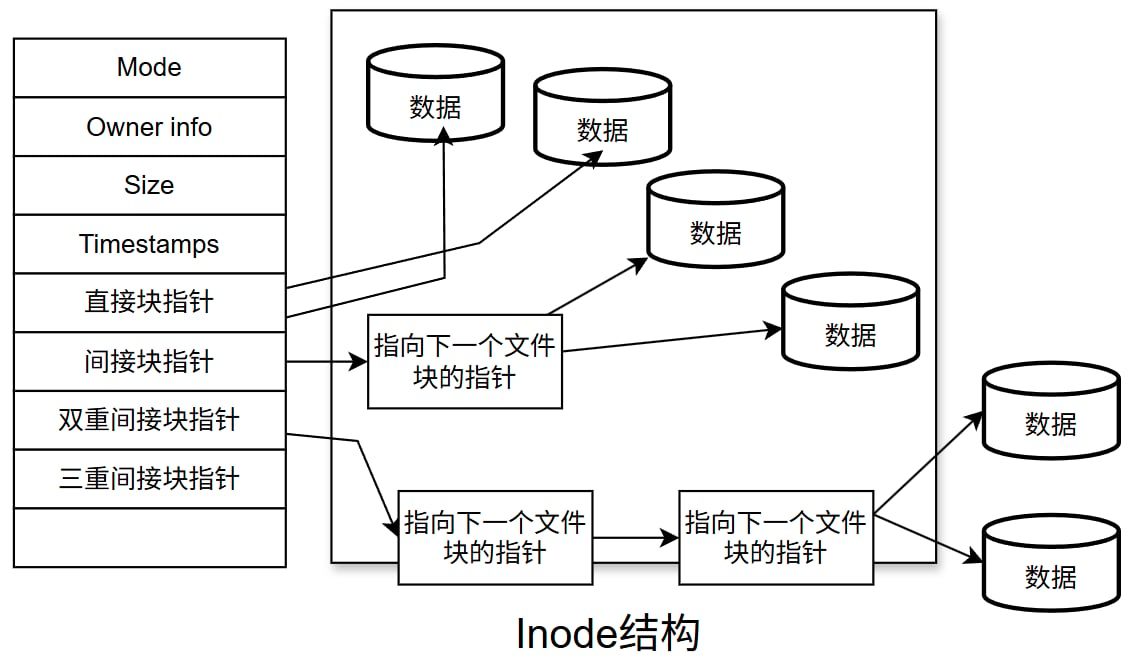
据是存放在inode(index node)表中。inode 表中有很多条记录组成,第一条记录对应的存放了一个
文件的元数据信息
每一个inode表记录对应的保存了以下信息:
```bash theme={null}
inode number 节点号
文件类型
权限
UID
GID
链接数(指向这个文件名路径名称个数)
该文件的大小和不同的时间戳
指向磁盘上文件的数据块指针
有关文件的其他数据
```
使用 rm 命令可以删除文件和目录
注意:此命令非常危险,慎重使用,建议使用 mv 代替 rm
格式:
```bash theme={null}
rm [OPTION]... FILE...
```
常用选项:
```bash theme={null}
-i 交互式
-f 强制删除
-r 递归
--no-preserve-root 删除/
```
范例:
```bash theme={null}
[root@centos8 ~]#rm -rf /
rm: it is dangerous to operate recursively on '/'
rm: use --no-preserve-root to override this failsafe
#思考删除/ 文件,如何验证【谨慎操作】
[root@centos8 ~]#rm -rf /*
[root@centos8 ~]#/2TAB
[root@centos8 ~]#echo *
```
范例: rm 别名
```bash theme={null}
[root@centos8 ~]#alias rm="echo 请使用mv"
```
范例:删除特殊文件
```bash theme={null}
[root@centos8 data]#rm ./-f
[root@centos8 data]#rm /data/-f
[root@centos8 data]#touch '~'
[root@centos8 data]#ls
'~'
[root@centos8 data]#rm -f ~
rm: cannot remove '/root': Is a directory
[root@centos8 data]#rm -- ~
rm: cannot remove '/root': Is a directory
[root@centos8 data]#rm -f ./~
```
rm 虽然删除了文件,但是被删除的文件仍然可能被恢复,在安全要求较高的场景下,可以使用shred安
全删除文件
### **目录操作**
**显示目录树** **tree**
常见选项:
-d: 只显示目录
-L level:指定显示的层级数目
-P pattern: 只显示由指定wild-card pattern匹配到的路径
**创建目录** **mkdir**
常见选项:
-p: 存在于不报错,且可自动创建所需的各目录
-v: 显示详细信息
-m MODE: 创建目录时直接指定权限
**删除空目录** **rmdir**
常见选项:
-p 递归删除父空目录
-v 显示详细信息
注意:rmdir只能删除空目录,如果想删除非空目录,可以使用rm -r 命令,递归删除目录树
范例
```bash theme={null}
alias rm='DIR=/data/backup`date +%F%T`;mkdir $DIR;mv -t $DIR'
```
练习
(1) 如何创建/testdir/dir1/x, /testdir/dir1/y, /testdir/dir1/x/a, /testdir/dir1/x/b, /testdir/dir1/y/a, /testdir/dir1/y/b
```bash theme={null}
mkdir -p /testdir/dir1/{x,y}/{a,b}
[root@192 ~]# ll /testdir/dir1/{x,y}
/testdir/dir1/x:
total 8
drwxr-xr-x 2 root root 4096 Jul 2 15:08 a
drwxr-xr-x 2 root root 4096 Jul 2 15:08 b
/testdir/dir1/y:
total 8
drwxr-xr-x 2 root root 4096 Jul 2 15:08 a
drwxr-xr-x 2 root root 4096 Jul 2 15:08 b
[root@192 ~]#
```
(2) 如何创建/testdir/dir2/x, /testdir/dir2/y, /testdir/dir2/x/a, /testdir/dir2/x/b
```bash theme={null}
[root@192 ~]# mkdir -p /testdir/dir2/{x,y} /testdir/dir2/x/{a,b}
[root@192 ~]# ll /testdir/dir2/{x,y}
/testdir/dir2/x:
total 8
drwxr-xr-x 2 root root 4096 Jul 2 15:09 a
drwxr-xr-x 2 root root 4096 Jul 2 15:09 b
/testdir/dir2/y:
total 0
```
(3) 如何创建/testdir/dir3, /testdir/dir4, /testdir/dir5, /testdir/dir5/dir6, /testdir/dir5/dir7
```bash theme={null}
[root@192 ~]# mkdir -p /testdir/dir{3,4,5} /testdir/dir5/dir{6,7}
[root@192 ~]# ll /testdir/dir{3,4,5}
/testdir/dir3:
total 0
/testdir/dir4:
total 0
/testdir/dir5:
total 8
drwxr-xr-x 2 root root 4096 Jul 2 15:11 dir6
drwxr-xr-x 2 root root 4096 Jul 2 15:11 dir7
[root@192 ~]#
```
## **文件元数据和节点表结构**
### **inode** **表结构**
据是存放在inode(index node)表中。inode 表中有很多条记录组成,第一条记录对应的存放了一个
文件的元数据信息
每一个inode表记录对应的保存了以下信息:
```bash theme={null}
inode number 节点号
文件类型
权限
UID
GID
链接数(指向这个文件名路径名称个数)
该文件的大小和不同的时间戳
指向磁盘上文件的数据块指针
有关文件的其他数据
```
 **目录**
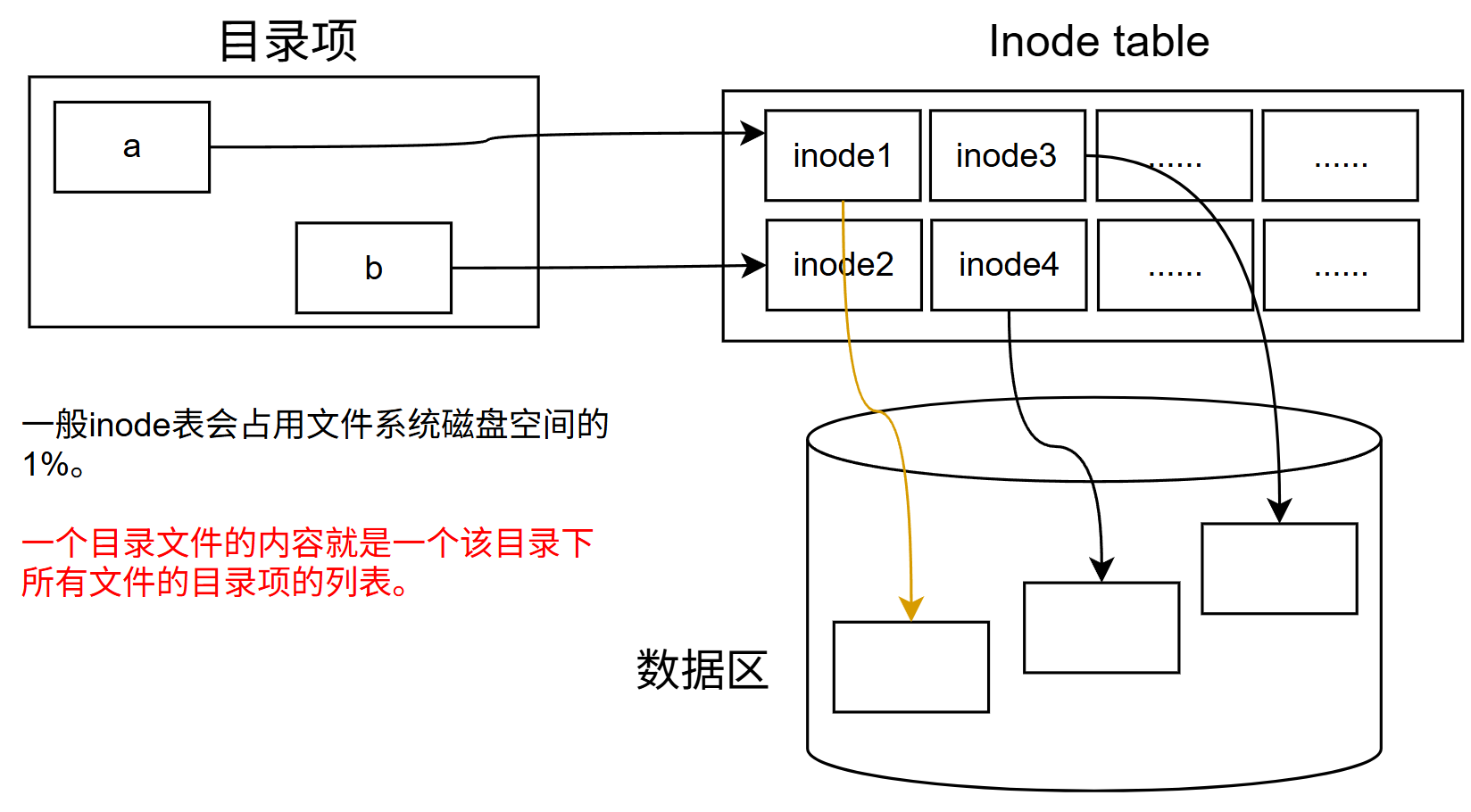
目录是个特殊文件,目录文件的内容保存了此目录中文件的列表及inode number对应关系
文件引用一个是 inode号
人是通过文件名来引用一个文件
一个目录是目录下的文件名和文件inode号之间的映射
**inode表和目录**
**目录**
目录是个特殊文件,目录文件的内容保存了此目录中文件的列表及inode number对应关系
文件引用一个是 inode号
人是通过文件名来引用一个文件
一个目录是目录下的文件名和文件inode号之间的映射
**inode表和目录**
 **cp和inode**
cp 命令:
分配一个空闲的inode号,在inode表中生成新条目
在目录中创建一个目录项,将名称与inode编号关联
拷贝数据生成新的文件
**rm和inode**
rm 命令:
链接数递减,从而释放的inode号可以被重用
把数据块放在空闲列表中
删除目录项
数据实际上不会马上被删除,但当另一个文件使用数据块时将被覆盖
**mv和inode**
如果mv命令的目标和源在相同的文件系统,作为mv 命令
用新的文件名创建对应新的目录项
删除旧目录条目对应的旧的文件名
不影响inode表(除时间戳)或磁盘上的数据位置:没有数据被移动!
如果目标和源在一个不同的文件系统, mv相当于cp和rm
范例:
```bash theme={null}
[root@centos8 ~]#df -i /boot
Filesystem Inodes IUsed IFree IUse% Mounted on
/dev/sda1 65536 310 65226 1% /boot
[root@centos8 ~]#mkdir /boot/test
[root@centos8 ~]#touch /boot/test/file{1..65226}
[root@centos8 ~]#touch /boot/test/new.txt
touch: cannot touch 'new.txt': No space left on device
[root@centos8 ~]#df /boot
Filesystem 1K-blocks Used Available Use% Mounted on
/dev/sda1 999320 133800 796708 15% /boot
[root@centos8 ~]#df -i /boot
Filesystem Inodes IUsed IFree IUse% Mounted on
/dev/sda1 65536 65536 0 100% /boot
```
范例:删除大文件
```bash theme={null}
[root@centos8 ~]#cat /dev/null > /var/log/huge.log
```
### 硬(hard)链接
硬链接本质上就给一个文件起一个新的名称,实质是同一个文件
硬链接特性
```bash theme={null}
创建硬链接会在对应的目录中增加额外的记录项以引用文件
对应于同一文件系统上一个物理文件
每个目录引用相同的inode号
创建时链接数递增
删除文件时:rm命令递减计数的链接,文件要存在,至少有一个链接数,当链接数为零时,该文件被删除
不能跨越驱动器或分区
不支持对目录创建硬链接
```
格式:
```bash theme={null}
ln filename [linkname ]
```
### 符号 symbolic (或软 soft)链接
一个符号链接指向另一个文件,就像 windows 中快捷方式,软链接文件和原文件本质上不是同一个文件
软链接特点
```bash theme={null}
一个符号链接的内容是它引用文件的名称
可以对目录创建软链接
可以跨分区的文件实现
指向的是另一个文件的路径;其大小为指向的路径字符串的长度;不增加或减少目标文件inode的引用计数
在创建软链接时, 如果源文件使用相对路径,是相对于软链接文件的路径,而非相对于当前工作目录,但是软链接的路径如果是相对路径,则是相对于当前工作目录
```
格式:
```bash theme={null}
ln -s filename [linkname]
```
范例: 查看软链接
```bash theme={null}
[root@ubuntu1804 ~]#ll /bin/sh
lrwxrwxrwx 1 root root 4 Nov 1 02:16 /bin/sh -> dash*
root@ubuntu2004:~# ll /bin/sh
lrwxrwxrwx 1 root root 4 Apr 23 2020 /bin/sh -> dash*
[root@centos8 ~]#ll /bin/sh
lrwxrwxrwx. 1 root root 4 Jul 22 2020 /bin/sh -> bash
[root@centos7 ~]#ll /bin/sh
lrwxrwxrwx. 1 root root 4 Mar 14 10:46 /bin/sh -> bash
```
范例:
```bash theme={null}
#绝对路径
ln -s /data/dir /data/dirlink
#相对路径
cd /data
ln -s ../data/dir /root/dirlink
#查看链接文件指向的原文件
readlink /data/dirlink
[root@centos8 ~]#readlink /proc/$$/exe
/usr/bin/bash
```
范例: 删除软链接时姿势不对造成的生产事故
```bash theme={null}
m -rf /data/dirlink #只删除软链接本身,不会删除源目录内容
rm -rf /data/dirlink/ #删除源目录的文件,但不会删除链接文件,此方法非常危险
#注意: 删除此软链接务必不要加-r选项
```
### 🌟**硬链接和软链接区别总结**
```bash theme={null}
1. 本质:
硬链接:本质是同一个文件
软链接:本质不是同一个文件
2. 跨设备
硬链接:不支持
软链接:支持
3. inode
硬链接:相同
软链接:不同
4. 链接数
硬链接:创建新的硬链接,链接数会增加,删除硬链接,链接数减少
软链接:创建或删除,链接数不会变化
5. 文件夹
硬链接:不支持
软链接:支持
6. 相对路径
硬链接:原始文件相对路径是相对于当前工作目录
软链接:原始文件的相对路径是相对于链接文件的相对路径
7. 删除源文件
硬链接:只是链接数减一,但链接文件的访问不受影响
软链接:链接文件将无法访问
8. 文件类型
硬链接:和源文件相同
软链接:链接文件,和源文件无关
9. 文件大小
硬链接: 和源文件相同
软链接: 源文件的路径的长度
```
### 生产案例
**案例1:提示空间满 No space left on device,但 df 可以看到空间很多,为什么?**
假设你有一个文件系统,其总inode数为`4194304`个。当前已经使用了`60830`个inode,剩余可用的inode数量为`4133474`个。你尝试创建大量文件,直到inode耗尽。
```bash theme={null}
[root@192 ~]# df
Filesystem 1K-blocks Used Available Use% Mounted on
/dev/mapper/openeuler-root 65617452 2570440 59681332 5% /
[root@192 ~]# df -i
Filesystem Inodes IUsed IFree IUse% Mounted on
/dev/mapper/openeuler-root 4194304 60830 4133474 2% /
```
`创建大量文件耗尽inode`
假设你使用以下命令创建了大量文件:
```bash theme={null}
for i in {1..4100000}; do touch /test/f$i; done
```
**中间状态**
在创建过程中,inode逐渐被耗尽。假设你创建了大约3500000个文件后,inode使用情况如下:
```bash theme={null}
[root@192 ~]# df -i
Filesystem Inodes IUsed IFree IUse% Mounted on
/dev/mapper/openeuler-root 4194304 3560830 633474 85% /
```
**创建更多文件直到inode耗尽**
继续创建文件,直到inode耗尽:
```bash theme={null}
for i in {3500001..4100000}; do touch /test/f$i; done
```
**最终状态**
当inode耗尽后,此时,`df`和`df -i`的输出可能如下:
```bash theme={null}
[root@192 ~]# df -i
Filesystem Inodes IUsed IFree IUse% Mounted on
/dev/mapper/openeuler-root 4194304 4194303 1 100% /
[root@192 ~]# df
Filesystem 1K-blocks Used Available Use% Mounted on
/dev/mapper/openeuler-root 65617452 2570440 59681332 5% /
```
此时,`IUsed`达到了4194303,`IFree`只剩下1,`IUse%`达到了100%。
`/dev/mapper/openeuler-root`的磁盘空间使用率仅为5%,还有大量的空间可用。
**尝试创建新文件**
此时,你尝试创建一个新文件:`touch /test/newfile`
你会收到以下错误:
```text theme={null}
touch: cannot touch '/test/newfile': No space left on device
```
> 结论:为什么会出现“`No space left on device`”?
>
> 尽管磁盘空间充足,但inode已经耗尽。每个文件和目录都需要一个inode来存储其元数据。当inode耗尽时,即使磁盘空间还有剩余,也无法创建新的文件或目录。因此,当你尝试创建新文件时,系统会报出“`No space left on device`”的错误。
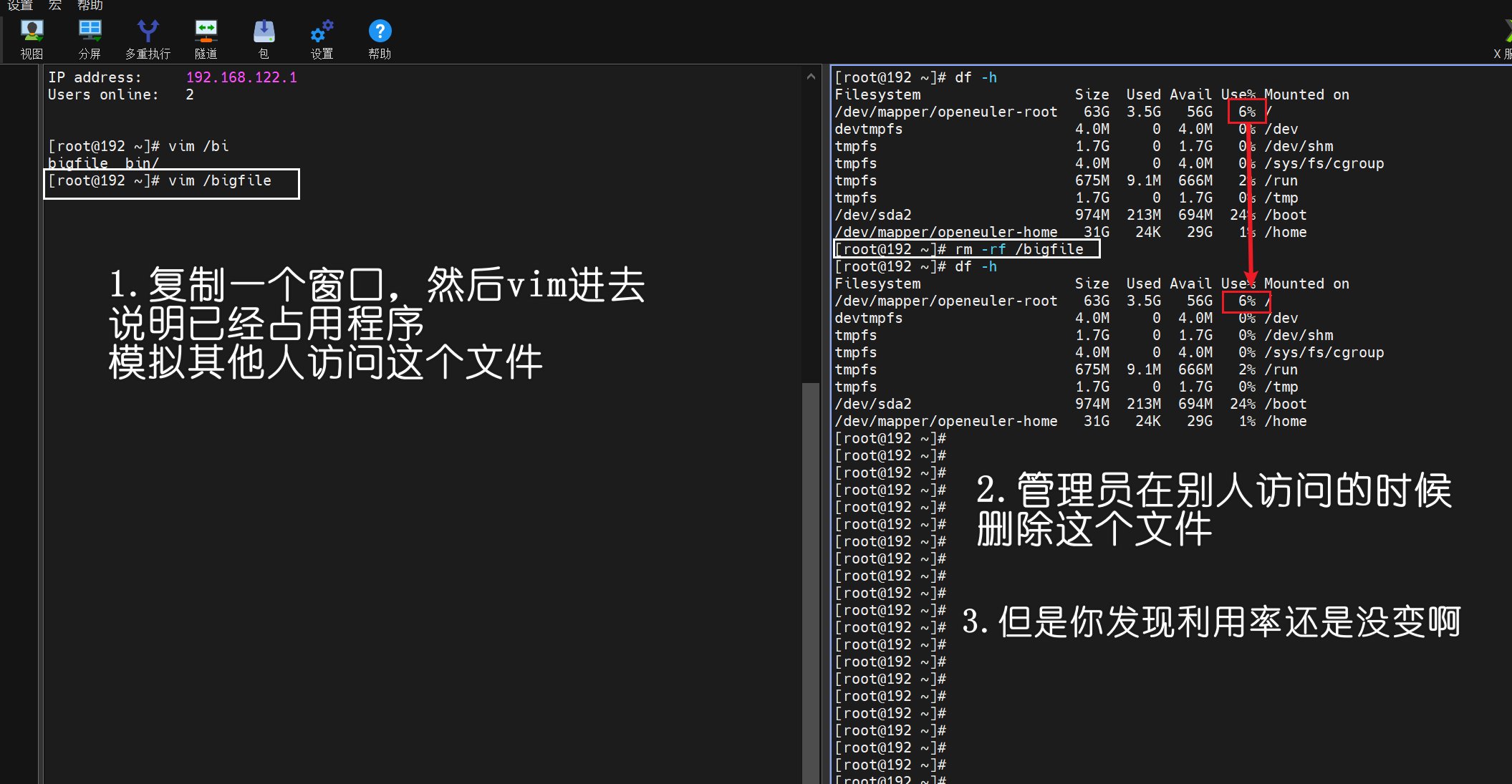
案例2:提示空间快满,使用 rm 删除了很大的无用文件后,df仍然看到空间不足,为什么?如何解决?
复现过程
**查看df状态** 利用率5%
```bash theme={null}
[root@192 ~]# df -h
Filesystem Size Used Avail Use% Mounted on
/dev/mapper/openeuler-root 63G 2.5G 57G 5% /
```
**创建一个大文件**
```bash theme={null}
[root@192 ~]# dd if=/dev/zero of=/bigfile bs=1G count=1
1+0 records in
1+0 records out
1073741824 bytes (1.1 GB, 1.0 GiB) copied, 0.622914 s, 1.7 GB/s
```
**查看磁盘空间使用情况** 利用率6%
```bash theme={null}
[root@192 ~]# df -h
Filesystem Size Used Avail Use% Mounted on
/dev/mapper/openeuler-root 63G 3.5G 56G 6% /
```
这时候复制一个窗口,vim进去
**cp和inode**
cp 命令:
分配一个空闲的inode号,在inode表中生成新条目
在目录中创建一个目录项,将名称与inode编号关联
拷贝数据生成新的文件
**rm和inode**
rm 命令:
链接数递减,从而释放的inode号可以被重用
把数据块放在空闲列表中
删除目录项
数据实际上不会马上被删除,但当另一个文件使用数据块时将被覆盖
**mv和inode**
如果mv命令的目标和源在相同的文件系统,作为mv 命令
用新的文件名创建对应新的目录项
删除旧目录条目对应的旧的文件名
不影响inode表(除时间戳)或磁盘上的数据位置:没有数据被移动!
如果目标和源在一个不同的文件系统, mv相当于cp和rm
范例:
```bash theme={null}
[root@centos8 ~]#df -i /boot
Filesystem Inodes IUsed IFree IUse% Mounted on
/dev/sda1 65536 310 65226 1% /boot
[root@centos8 ~]#mkdir /boot/test
[root@centos8 ~]#touch /boot/test/file{1..65226}
[root@centos8 ~]#touch /boot/test/new.txt
touch: cannot touch 'new.txt': No space left on device
[root@centos8 ~]#df /boot
Filesystem 1K-blocks Used Available Use% Mounted on
/dev/sda1 999320 133800 796708 15% /boot
[root@centos8 ~]#df -i /boot
Filesystem Inodes IUsed IFree IUse% Mounted on
/dev/sda1 65536 65536 0 100% /boot
```
范例:删除大文件
```bash theme={null}
[root@centos8 ~]#cat /dev/null > /var/log/huge.log
```
### 硬(hard)链接
硬链接本质上就给一个文件起一个新的名称,实质是同一个文件
硬链接特性
```bash theme={null}
创建硬链接会在对应的目录中增加额外的记录项以引用文件
对应于同一文件系统上一个物理文件
每个目录引用相同的inode号
创建时链接数递增
删除文件时:rm命令递减计数的链接,文件要存在,至少有一个链接数,当链接数为零时,该文件被删除
不能跨越驱动器或分区
不支持对目录创建硬链接
```
格式:
```bash theme={null}
ln filename [linkname ]
```
### 符号 symbolic (或软 soft)链接
一个符号链接指向另一个文件,就像 windows 中快捷方式,软链接文件和原文件本质上不是同一个文件
软链接特点
```bash theme={null}
一个符号链接的内容是它引用文件的名称
可以对目录创建软链接
可以跨分区的文件实现
指向的是另一个文件的路径;其大小为指向的路径字符串的长度;不增加或减少目标文件inode的引用计数
在创建软链接时, 如果源文件使用相对路径,是相对于软链接文件的路径,而非相对于当前工作目录,但是软链接的路径如果是相对路径,则是相对于当前工作目录
```
格式:
```bash theme={null}
ln -s filename [linkname]
```
范例: 查看软链接
```bash theme={null}
[root@ubuntu1804 ~]#ll /bin/sh
lrwxrwxrwx 1 root root 4 Nov 1 02:16 /bin/sh -> dash*
root@ubuntu2004:~# ll /bin/sh
lrwxrwxrwx 1 root root 4 Apr 23 2020 /bin/sh -> dash*
[root@centos8 ~]#ll /bin/sh
lrwxrwxrwx. 1 root root 4 Jul 22 2020 /bin/sh -> bash
[root@centos7 ~]#ll /bin/sh
lrwxrwxrwx. 1 root root 4 Mar 14 10:46 /bin/sh -> bash
```
范例:
```bash theme={null}
#绝对路径
ln -s /data/dir /data/dirlink
#相对路径
cd /data
ln -s ../data/dir /root/dirlink
#查看链接文件指向的原文件
readlink /data/dirlink
[root@centos8 ~]#readlink /proc/$$/exe
/usr/bin/bash
```
范例: 删除软链接时姿势不对造成的生产事故
```bash theme={null}
m -rf /data/dirlink #只删除软链接本身,不会删除源目录内容
rm -rf /data/dirlink/ #删除源目录的文件,但不会删除链接文件,此方法非常危险
#注意: 删除此软链接务必不要加-r选项
```
### 🌟**硬链接和软链接区别总结**
```bash theme={null}
1. 本质:
硬链接:本质是同一个文件
软链接:本质不是同一个文件
2. 跨设备
硬链接:不支持
软链接:支持
3. inode
硬链接:相同
软链接:不同
4. 链接数
硬链接:创建新的硬链接,链接数会增加,删除硬链接,链接数减少
软链接:创建或删除,链接数不会变化
5. 文件夹
硬链接:不支持
软链接:支持
6. 相对路径
硬链接:原始文件相对路径是相对于当前工作目录
软链接:原始文件的相对路径是相对于链接文件的相对路径
7. 删除源文件
硬链接:只是链接数减一,但链接文件的访问不受影响
软链接:链接文件将无法访问
8. 文件类型
硬链接:和源文件相同
软链接:链接文件,和源文件无关
9. 文件大小
硬链接: 和源文件相同
软链接: 源文件的路径的长度
```
### 生产案例
**案例1:提示空间满 No space left on device,但 df 可以看到空间很多,为什么?**
假设你有一个文件系统,其总inode数为`4194304`个。当前已经使用了`60830`个inode,剩余可用的inode数量为`4133474`个。你尝试创建大量文件,直到inode耗尽。
```bash theme={null}
[root@192 ~]# df
Filesystem 1K-blocks Used Available Use% Mounted on
/dev/mapper/openeuler-root 65617452 2570440 59681332 5% /
[root@192 ~]# df -i
Filesystem Inodes IUsed IFree IUse% Mounted on
/dev/mapper/openeuler-root 4194304 60830 4133474 2% /
```
`创建大量文件耗尽inode`
假设你使用以下命令创建了大量文件:
```bash theme={null}
for i in {1..4100000}; do touch /test/f$i; done
```
**中间状态**
在创建过程中,inode逐渐被耗尽。假设你创建了大约3500000个文件后,inode使用情况如下:
```bash theme={null}
[root@192 ~]# df -i
Filesystem Inodes IUsed IFree IUse% Mounted on
/dev/mapper/openeuler-root 4194304 3560830 633474 85% /
```
**创建更多文件直到inode耗尽**
继续创建文件,直到inode耗尽:
```bash theme={null}
for i in {3500001..4100000}; do touch /test/f$i; done
```
**最终状态**
当inode耗尽后,此时,`df`和`df -i`的输出可能如下:
```bash theme={null}
[root@192 ~]# df -i
Filesystem Inodes IUsed IFree IUse% Mounted on
/dev/mapper/openeuler-root 4194304 4194303 1 100% /
[root@192 ~]# df
Filesystem 1K-blocks Used Available Use% Mounted on
/dev/mapper/openeuler-root 65617452 2570440 59681332 5% /
```
此时,`IUsed`达到了4194303,`IFree`只剩下1,`IUse%`达到了100%。
`/dev/mapper/openeuler-root`的磁盘空间使用率仅为5%,还有大量的空间可用。
**尝试创建新文件**
此时,你尝试创建一个新文件:`touch /test/newfile`
你会收到以下错误:
```text theme={null}
touch: cannot touch '/test/newfile': No space left on device
```
> 结论:为什么会出现“`No space left on device`”?
>
> 尽管磁盘空间充足,但inode已经耗尽。每个文件和目录都需要一个inode来存储其元数据。当inode耗尽时,即使磁盘空间还有剩余,也无法创建新的文件或目录。因此,当你尝试创建新文件时,系统会报出“`No space left on device`”的错误。
案例2:提示空间快满,使用 rm 删除了很大的无用文件后,df仍然看到空间不足,为什么?如何解决?
复现过程
**查看df状态** 利用率5%
```bash theme={null}
[root@192 ~]# df -h
Filesystem Size Used Avail Use% Mounted on
/dev/mapper/openeuler-root 63G 2.5G 57G 5% /
```
**创建一个大文件**
```bash theme={null}
[root@192 ~]# dd if=/dev/zero of=/bigfile bs=1G count=1
1+0 records in
1+0 records out
1073741824 bytes (1.1 GB, 1.0 GiB) copied, 0.622914 s, 1.7 GB/s
```
**查看磁盘空间使用情况** 利用率6%
```bash theme={null}
[root@192 ~]# df -h
Filesystem Size Used Avail Use% Mounted on
/dev/mapper/openeuler-root 63G 3.5G 56G 6% /
```
这时候复制一个窗口,vim进去
 ```bash theme={null}
#查看文件是否占用
[root@192 ~]# lsof | grep bigfile
vim 53885 root 4u REG 253,0 4096 13 /.bigfile.swp
#删除占用的进程
kill -9 53885
#当执行删除的时候,其他人正在占用的vim窗口就会强制退出,并且释放空间
```
```bash theme={null}
#查看文件是否占用
[root@192 ~]# lsof | grep bigfile
vim 53885 root 4u REG 253,0 4096 13 /.bigfile.swp
#删除占用的进程
kill -9 53885
#当执行删除的时候,其他人正在占用的vim窗口就会强制退出,并且释放空间
```
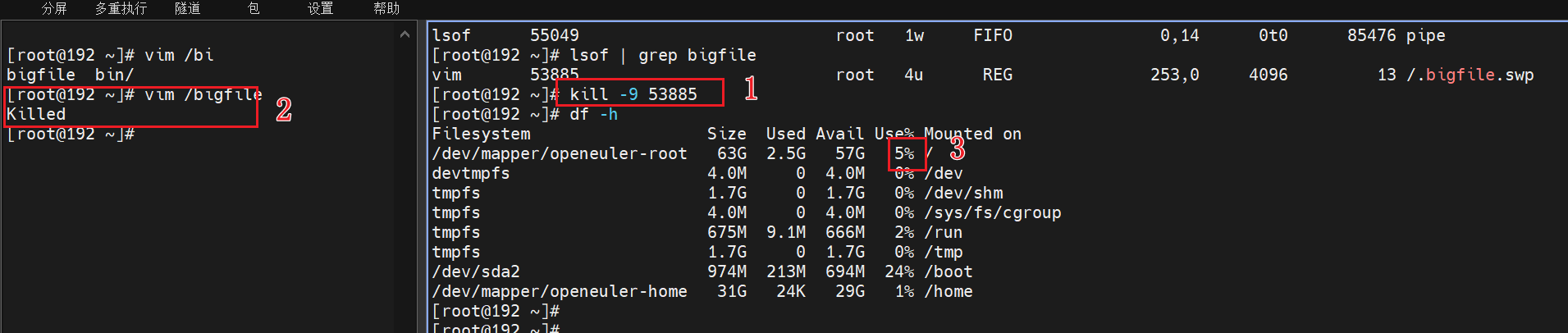 使用`rm`删除了很大的无用文件后,`df`仍然看到空间不足”的情况。原因是文件被某个进程占用,导致磁盘空间没有立即释放。通过查找并关闭占用文件的进程,可以解决这个问题。
## **IO** **重定向和管道**
### **标准输入和输出**
程序:指令+数据
读入数据:Input
输出数据:Output
打开的文件都有一个fd: file descriptor (文件描述符)
Linux给程序提供三种 I/O 设备
标准输入(STDIN) -0 默认接受来自终端窗口的输入
标准输出(STDOUT)-1 默认输出到终端窗口
标准错误(STDERR) -2 默认输出到终端窗口
范例:文件描述符
```bash theme={null}
[root@centos8 ~]#ll /dev/std*
lrwxrwxrwx. 1 root root 15 Dec 16 08:56 /dev/stderr -> /proc/self/fd/2
lrwxrwxrwx. 1 root root 15 Dec 16 08:56 /dev/stdin -> /proc/self/fd/0
lrwxrwxrwx. 1 root root 15 Dec 16 08:56 /dev/stdout -> /proc/self/fd/1
[root@centos8 ~]#ll /proc/self/fd/*
ls: cannot access '/proc/self/fd/255': No such file or directory
lrwx------. 1 root root 64 Dec 16 10:59 /proc/self/fd/0 -> /dev/pts/0
lrwx------. 1 root root 64 Dec 16 10:59 /proc/self/fd/1 -> /dev/pts/0
lrwx------. 1 root root 64 Dec 16 10:59 /proc/self/fd/2 -> /dev/pts/0
lr-x------. 1 root root 64 Dec 16 10:59 /proc/self/fd/3 ->
/var/lib/sss/mc/passwd
lrwx------. 1 root root 64 Dec 16 10:59 /proc/self/fd/4 -> 'socket:[66542]'
lr-x------. 1 root root 64 Dec 16 10:59 /proc/self/fd/5 -> /var/lib/sss/mc/group
[root@centos8 ~]#ll /proc/`pidof tail`/fd
total 0
lrwx------. 1 root root 64 Dec 16 10:56 0 -> /dev/pts/1
lrwx------. 1 root root 64 Dec 16 10:56 1 -> /dev/pts/1
lrwx------. 1 root root 64 Dec 16 10:56 2 -> /dev/pts/1
lr-x------. 1 root root 64 Dec 16 10:56 3 -> /var/log/messages
lr-x------. 1 root root 64 Dec 16 10:56 4 -> anon_inode:inotify
```
范例: 文件描述符
```bash theme={null}
[root@centos8 ~]#cat test.txt
hello
[root@centos8 ~]#cat file.py
import time
f = open('test.txt','r')
time.sleep(1000)
[root@centos8 ~]#python3 file.py
[root@centos8 ~]#ll /proc/`pidof python3`/fd
total 0
lrwx------ 1 root root 64 Apr 6 18:13 0 -> /dev/pts/0
lrwx------ 1 root root 64 Apr 6 18:13 1 -> /dev/pts/0
lrwx------ 1 root root 64 Apr 6 18:13 2 -> /dev/pts/0
lr-x------ 1 root root 64 Apr 6 18:13 3 -> /root/test.txt
```
### I/O重定向redirect
I/O重定向:将默认的输入,输出或错误对应的设备改变,指向新的目标
#### **标准输出和错误重新定向**
STDOUT和STDERR可以被重定向到指定文件,而非默认的当前终端
格式
```bash theme={null}
命令 操作符号 文件名
```
**支持的操作符号包括**
```bash theme={null}
1> 或 > 把STDOUT重定向到文件
2> 把STDERR重定向到文件
&> 把标准输出和错误都重定向
>& 和上面功能一样,建议使用上面方式
```
以上如果文件已存在,文件内容会被覆盖
**追加**
`>>` 可以在原有内容基础上,追加内容
把输出和错误重新定向追加到文件
```bash theme={null}
>> 追加标准输出重定向至文件
2>> 追加标准错误重定向至文件
```
**标准输出和错误输出各自定向至不同位置**
```bash theme={null}
COMMAND > /path/to/file.out 2> /path/to/error.out
```
**合并标准输出和错误输出为同一个数据流进行重定向**
```bash theme={null}
&> 覆盖重定向
&>> 追加重定向
COMMAND > /path/to/file.out 2>&1 (顺序很重要)
COMMAND >> /path/to/file.out 2>&1
```
**合并多个程序**
`(CMD1;CMD2......) 或者{ CMD1;CMD2;....; }合并多个程序的STDOUT`
范例:
```bash theme={null}
[root@centos8 ~]#ls 1> /dev/pts/1
[root@centos8 ~]#ls /data > /dev/pts/1
```
范例:标准错误重定向
```bash theme={null}
[root@centos8 ~]#rm /data/f1.log 2> /data/all.log
```
范例:合并多个命令的结果至一个文件中
```bash theme={null}
[root@centos8 ~]#( cal 2019 ; cal 2020 ) > all.txt
[root@centos8 ~]#{ ls;hostname;} > /data/all.log
```
范例:清除大文件
```bash theme={null}
#通用
cat /dev/null > /data/file.log
#依赖于shell类型,不通用
> /data/file.log
```
范例:分别重定向
```bash theme={null}
[root@centos8 ~]#ls /data/ /xxx > stdout.log 2> stderr.log
```
范例:将标准输出和错误都重定向到同一个文件
```bash theme={null}
[root@centos8 ~]#ls /data /xxx > /data/all.log 2>&1
[root@centos8 ~]#ls /data /xxx 2> /data/all.log 1>&2
[root@centos8 ~]#ls /data /xxx &> /data/all.log
[root@centos8 ~]#ls /data /xxx >& /data/all.log
[root@centos8 ~]#ls /data /xxx 2>&1 > /data/all.log
```
* **前四条命令**:
* 都是先处理标准输出或标准错误的重定向,然后再处理另一个流的重定向。
* 例如,`ls /data /xxx > /data/all.log 2>&1`先将标准输出重定向到文件,再将标准错误重定向到标准输出。
* **第五条命令**:
* `ls /data /xxx 2>&1 > /data/all.log`先将标准错误重定向到标准输出,然后再将标准输出重定向到文件。
* 这种顺序在某些情况下可能会导致不同的行为,尤其是在更复杂的命令中。但在这个特定的例子中,最终结果是相同的。
范例
```bash theme={null}
[root@centos8 ~]#man bash > bash.txt
[root@centos8 ~]#wc -l bash.txt
3821 bash.txt
```
范例
```bash theme={null}
[root@192 ~]# passwd wang
passwd: Unknown user name 'wang'.
[root@192 ~]# passwd wang &> /dev/null
[root@192 ~]#
```
范例: 实现标准输出和错误的互换
```bash theme={null}
[root@centos8 ~]#ls f1.txt f2.txt
ls: cannot access 'f1.txt': No such file or directory
ls: cannot access 'f2.txt': No such file or directory
[root@centos8 ~]#( cat /etc/centos-release /etc/xxx 3>&1 1>&2 2>&3 ) > f1.txt
2> f2.txt
[root@centos8 ~]#cat f1.txt
cat: /etc/xxx: No such file or directory
[root@centos8 ~]#cat f2.txt
CentOS Linux release 8.2.2004 (Core)
```
#### **标准输入重定向**
从文件中导入STDIN,代替当前终端的输入设备,使用 \< 来重定向标准输入
某些命令能够接受从文件中导入的STDIN
##### **tr** **命令**
tr 转换和删除字符
```bash theme={null}
tr [OPTION]... SET1 [SET2]
```
```bash theme={null}
-d --delete:删除所有属于第一字符集的字符
-s --squeeze-repeats:把连续重复的字符以单独一个字符表示,即去重
-t --truncate-set1:将第一个字符集对应字符转化为第二字符集对应的字符
-c -C --complement:取字符集的补集
\NNN character with octal value NNN (1 to 3 octal digits)
\\ backslash
\a audible BEL
\b backspace
\f form feed
\n new line
\r return
\t horizontal tab
\v vertical tab
[:alnum:]:字母和数字
[:alpha:]:字母
[:digit:]:数字
[:lower:]:小写字母
[:upper:]:大写字母
[:space:]:空白字符
[:print:]:可打印字符
[:punct:]:标点符号
[:graph:]:图形字符
[:cntrl:]:控制(非打印)字符
[:xdigit:]:十六进制字符
```
范例:
```bash theme={null}
#该命令会把/etc/issue中的小写字符都转换成大写字符
[root@192 ~]# cat /etc/issue
Authorized users only. All activities may be monitored and reported.
[root@192 ~]# tr a-z A-Z< /etc/issue
AUTHORIZED USERS ONLY. ALL ACTIVITIES MAY BE MONITORED AND REPORTED.
[root@192 ~]#
#删除fstab文件中的所有abc中任意字符
[root@192 ~]# echo "acvsfasdfSDFD21343243" > 1.txt
[root@192 ~]# cat 1.txt
acvsfasdfSDFD21343243
[root@192 ~]# tr -d abc < 1.txt
vsfsdfSDFD21343243
[root@192 ~]#
```
范例:将所有的连续空格替换成一个空格或别的符号
```bash theme={null}
[root@192 ~]# df -h
Filesystem Size Used Avail Use% Mounted on
/dev/mapper/openeuler-root 63G 2.5G 57G 5% /
devtmpfs 4.0M 0 4.0M 0% /dev
tmpfs 1.7G 0 1.7G 0% /dev/shm
tmpfs 4.0M 0 4.0M 0% /sys/fs/cgroup
tmpfs 675M 9.1M 666M 2% /run
tmpfs 1.7G 0 1.7G 0% /tmp
/dev/sda2 974M 213M 694M 24% /boot
/dev/mapper/openeuler-home 31G 24K 29G 1% /home
[root@192 ~]# df -h > df.log
[root@192 ~]# tr -s ' ' < df.log
Filesystem Size Used Avail Use% Mounted on
/dev/mapper/openeuler-root 63G 2.5G 57G 5% /
devtmpfs 4.0M 0 4.0M 0% /dev
tmpfs 1.7G 0 1.7G 0% /dev/shm
tmpfs 4.0M 0 4.0M 0% /sys/fs/cgroup
tmpfs 675M 9.1M 666M 2% /run
tmpfs 1.7G 0 1.7G 0% /tmp
/dev/sda2 974M 213M 694M 24% /boot
/dev/mapper/openeuler-home 31G 24K 29G 1% /home
[root@192 ~]# tr -s ' ' : < df.log
Filesystem:Size:Used:Avail:Use%:Mounted:on
/dev/mapper/openeuler-root:63G:2.5G:57G:5%:/
devtmpfs:4.0M:0:4.0M:0%:/dev
tmpfs:1.7G:0:1.7G:0%:/dev/shm
tmpfs:4.0M:0:4.0M:0%:/sys/fs/cgroup
tmpfs:675M:9.1M:666M:2%:/run
tmpfs:1.7G:0:1.7G:0%:/tmp
/dev/sda2:974M:213M:694M:24%:/boot
/dev/mapper/openeuler-home:31G:24K:29G:1%:/home
```
##### **标准输入重定向**
实现标准输入重定向的符号
```bash theme={null}
COMMAND 0< FILE
COMMAND < FILE
```
比如
```bash theme={null}
cat > file
mage
wangxiaochun
```
按ctrl+d离开,可以使用文件来代替键盘的输入
```bash theme={null}
cat < file1 > file2
cat < file1 >> file1
```
范例:
```bash theme={null}
[root@centos8 ~]#echo 2^3 > bc.log
[root@centos8 ~]#cat bc.log
2^3
[root@centos8 ~]#bc < bc.log
8
[root@centos8 ~]#cat < mail.txt
hello
how old are you
[root@centos8 ~]#cat mail.txt
hello
how old are you
[root@centos8 ~]#cat < mail.txt > mail2.txt
[root@centos8 ~]#cat mail2.txt
hello
how old are you
[root@centos8 ~]#cat mail.txt
hello
how old are you
[root@centos8 ~]#mail -s test2 wang < mail.txt
[root@centos8 ~]#cat > cat.log
line1
line2
line3
```
##### 把多行重定向
使用 `<<终止词` 命令从键盘把多行重导向给STDIN,直到终止词位置之前的所有文本都发送给STDIN,有时被称为就地文本(here documents)其中终止词可以是任何一个或多个符号,比如:`!,@,$,EOF(End Of File)`,magedu等,其中EOF比较常用
```bash theme={null}
cat > 1.txt <<"EOF"
213123
123213
41324324
EOF
```
##### **高级重定向写法**
`cmd <<< "string"`
含义是 here-string ,表示传给给cmd的stdin的内容从这里开始是一个字符串。
范例:
```bash theme={null}
[root@rocky8 ~]#tr 'a-z' 'A-Z' <<<"I am wang"
I AM WANG
```
`cmd1 < <(cmd2)`
名称为 Process substitution ,是由两个部分组成
`<(cmd2)` 表示把cmd2的输出写入一个临时文件, 注意:`<`和`(`之间`无空格`
`cmd1 < 这是一个标准的stdin重定向`
把两个合起来,就是把cmd2的输出stdout传递给cmd1作为输入stdin, 中间通过临时文件做传递
```bash theme={null}
[root@rocky8 ~]#tr 'a-z' 'A-Z' < <(echo I am wang)
I AM WANG
[root@192 ~]# ll <(echo whoami)
lr-x------ 1 root root 64 Jul 2 16:53 /dev/fd/63 -> 'pipe:[99822]'
```
### **管道**
#### **管道**
管道(使用符号“`|`”表示)用来连接多个命令
格式
```bash theme={null}
命令1 | 命令2 | 命令3 | …
```
功能说明:
将命令1的STDOUT发送给命令2的STDIN,命令2的STDOUT发送到命令3的STDIN
所有命令会在当前shell进程的子shell进程中执行
组合多种工具的功能
注意:STDERR默认不能通过管道转发,可利用2>&1 或 |& 实现,格式如下
```bash theme={null}
命令1 2>&1 | 命令2
命令1 |& 命令2
```
范例
```bash theme={null}
[root@192 ~]# df -h > df.log
[root@192 ~]# tr -s ' ' < df.log
Filesystem Size Used Avail Use% Mounted on
/dev/mapper/openeuler-root 63G 2.5G 57G 5% /
devtmpfs 4.0M 0 4.0M 0% /dev
tmpfs 1.7G 0 1.7G 0% /dev/shm
tmpfs 4.0M 0 4.0M 0% /sys/fs/cgroup
tmpfs 675M 9.1M 666M 2% /run
tmpfs 1.7G 0 1.7G 0% /tmp
/dev/sda2 974M 213M 694M 24% /boot
/dev/mapper/openeuler-home 31G 24K 29G 1% /home
[root@192 ~]# df -h| tr -s ' '
Filesystem Size Used Avail Use% Mounted on
/dev/mapper/openeuler-root 63G 2.5G 57G 5% /
devtmpfs 4.0M 0 4.0M 0% /dev
tmpfs 1.7G 0 1.7G 0% /dev/shm
tmpfs 4.0M 0 4.0M 0% /sys/fs/cgroup
tmpfs 675M 9.1M 666M 2% /run
tmpfs 1.7G 0 1.7G 0% /tmp
/dev/sda2 974M 213M 694M 24% /boot
/dev/mapper/openeuler-home 31G 24K 29G 1% /home
```
范例:
```bash theme={null}
[root@centos8 ~]#ls /data /xxx | tr 'a-z' 'A-Z'
ls: cannot access '/xxx': No such file or directory
/DATA:
ALL.LOG
F1.TXT
PASSWD.LOG
STERR.LOG
STOUT.LOG
TEST.LOG
TOUCH.LOG
[root@centos8 ~]#ls /data /xxx 2>&1 | tr 'a-z' 'A-Z'
LS: CANNOT ACCESS '/XXX': NO SUCH FILE OR DIRECTORY
/DATA:
ALL.LOG
F1.TXT
PASSWD.LOG
STERR.LOG
STOUT.LOG
TEST.LOG
TOUCH.LOG
[root@centos8 ~]#ls /data /xxx |& tr 'a-z' 'A-Z'
LS: CANNOT ACCESS '/XXX': NO SUCH FILE OR DIRECTORY
/DATA:
ALL.LOG
F1.TXT
PASSWD.LOG
STERR.LOG
STOUT.LOG
TEST.LOG
TOUCH.LOG
```
范例:
```bash theme={null}
[root@192 ~]# useradd wang
[root@192 ~]# passwd --stdin wang
Changing password for user wang.
123456 #这里输入密码(手动)
passwd: all authentication tokens updated successfully.
#设置密码文件
[root@192 ~]# cat > pass.txt<< "EOF"
123456
EOF
#用文件的密码传入进行修改密码
[root@192 ~]# passwd --stdin wang < pass.txt
Changing password for user wang.
passwd: all authentication tokens updated successfully.
[root@192 ~]# cat pass.txt | passwd --stdin wang
Changing password for user wang.
passwd: all authentication tokens updated successfully.
#明文密码
[root@192 ~]# echo 123456 | passwd --stdin wang
Changing password for user wang.
passwd: all authentication tokens updated successfully.
[root@192 ~]# echo 123456 | passwd --stdin wang &>/dev/null
[root@192 ~]#
```
范例:
```bash theme={null}
#转换为大写字母
ls | tr ‘a-z’ ‘A-Z’
#less实现分页地查看输入
ls -l /etc | less
#mail通过电子邮件发送输入
echo "test email" | mail -s "test" wang@example.com
#算术运算
echo "2^3" |bc
```
范例:
```bash theme={null}
[root@rocky8 ~]#ls --help | grep size
#有此命令的帮助信是是标准错误
[root@rocky8 ~]#mysqldump --help |& grep master-data
```
#### **tee** **命令**
利用 tee 命令可以重定向到多个目标,经常配合管道符一起使用
格式
```bash theme={null}
命令1 | tee [-a ] 文件名 | 命令2
```
以上可以把命令1的STDOUT保存在文件中,做为命令2的输入
选项:
```bash theme={null}
-a 追加
```
功能:
保存不同阶段的输出
复杂管道的故障排除
同时查看和记录输出
范例
```bash theme={null}
[root@centos8 ~]#echo {1..100}|tr ' ' +|bc
5050
[root@centos8 ~]#echo {1..100..2} | tr ' ' + | bc
2500
[root@centos8 ~]#seq -s + 1 100 |bc
5050
[root@centos8 ~]#seq -s+ 1 2 100 | bc
2500
```
范例:
```bash theme={null}
cat </dev/null <<"EOF"
welcome to magedu
happy new year
welcome to magedu
happy new year
welcome to magedu
happy new year
EOF
[root@192 ~]# cat 3.txt
welcome to magedu
happy new year
welcome to magedu
happy new year
welcome to magedu
happy new year
[root@192 ~]#
```
使用`rm`删除了很大的无用文件后,`df`仍然看到空间不足”的情况。原因是文件被某个进程占用,导致磁盘空间没有立即释放。通过查找并关闭占用文件的进程,可以解决这个问题。
## **IO** **重定向和管道**
### **标准输入和输出**
程序:指令+数据
读入数据:Input
输出数据:Output
打开的文件都有一个fd: file descriptor (文件描述符)
Linux给程序提供三种 I/O 设备
标准输入(STDIN) -0 默认接受来自终端窗口的输入
标准输出(STDOUT)-1 默认输出到终端窗口
标准错误(STDERR) -2 默认输出到终端窗口
范例:文件描述符
```bash theme={null}
[root@centos8 ~]#ll /dev/std*
lrwxrwxrwx. 1 root root 15 Dec 16 08:56 /dev/stderr -> /proc/self/fd/2
lrwxrwxrwx. 1 root root 15 Dec 16 08:56 /dev/stdin -> /proc/self/fd/0
lrwxrwxrwx. 1 root root 15 Dec 16 08:56 /dev/stdout -> /proc/self/fd/1
[root@centos8 ~]#ll /proc/self/fd/*
ls: cannot access '/proc/self/fd/255': No such file or directory
lrwx------. 1 root root 64 Dec 16 10:59 /proc/self/fd/0 -> /dev/pts/0
lrwx------. 1 root root 64 Dec 16 10:59 /proc/self/fd/1 -> /dev/pts/0
lrwx------. 1 root root 64 Dec 16 10:59 /proc/self/fd/2 -> /dev/pts/0
lr-x------. 1 root root 64 Dec 16 10:59 /proc/self/fd/3 ->
/var/lib/sss/mc/passwd
lrwx------. 1 root root 64 Dec 16 10:59 /proc/self/fd/4 -> 'socket:[66542]'
lr-x------. 1 root root 64 Dec 16 10:59 /proc/self/fd/5 -> /var/lib/sss/mc/group
[root@centos8 ~]#ll /proc/`pidof tail`/fd
total 0
lrwx------. 1 root root 64 Dec 16 10:56 0 -> /dev/pts/1
lrwx------. 1 root root 64 Dec 16 10:56 1 -> /dev/pts/1
lrwx------. 1 root root 64 Dec 16 10:56 2 -> /dev/pts/1
lr-x------. 1 root root 64 Dec 16 10:56 3 -> /var/log/messages
lr-x------. 1 root root 64 Dec 16 10:56 4 -> anon_inode:inotify
```
范例: 文件描述符
```bash theme={null}
[root@centos8 ~]#cat test.txt
hello
[root@centos8 ~]#cat file.py
import time
f = open('test.txt','r')
time.sleep(1000)
[root@centos8 ~]#python3 file.py
[root@centos8 ~]#ll /proc/`pidof python3`/fd
total 0
lrwx------ 1 root root 64 Apr 6 18:13 0 -> /dev/pts/0
lrwx------ 1 root root 64 Apr 6 18:13 1 -> /dev/pts/0
lrwx------ 1 root root 64 Apr 6 18:13 2 -> /dev/pts/0
lr-x------ 1 root root 64 Apr 6 18:13 3 -> /root/test.txt
```
### I/O重定向redirect
I/O重定向:将默认的输入,输出或错误对应的设备改变,指向新的目标
#### **标准输出和错误重新定向**
STDOUT和STDERR可以被重定向到指定文件,而非默认的当前终端
格式
```bash theme={null}
命令 操作符号 文件名
```
**支持的操作符号包括**
```bash theme={null}
1> 或 > 把STDOUT重定向到文件
2> 把STDERR重定向到文件
&> 把标准输出和错误都重定向
>& 和上面功能一样,建议使用上面方式
```
以上如果文件已存在,文件内容会被覆盖
**追加**
`>>` 可以在原有内容基础上,追加内容
把输出和错误重新定向追加到文件
```bash theme={null}
>> 追加标准输出重定向至文件
2>> 追加标准错误重定向至文件
```
**标准输出和错误输出各自定向至不同位置**
```bash theme={null}
COMMAND > /path/to/file.out 2> /path/to/error.out
```
**合并标准输出和错误输出为同一个数据流进行重定向**
```bash theme={null}
&> 覆盖重定向
&>> 追加重定向
COMMAND > /path/to/file.out 2>&1 (顺序很重要)
COMMAND >> /path/to/file.out 2>&1
```
**合并多个程序**
`(CMD1;CMD2......) 或者{ CMD1;CMD2;....; }合并多个程序的STDOUT`
范例:
```bash theme={null}
[root@centos8 ~]#ls 1> /dev/pts/1
[root@centos8 ~]#ls /data > /dev/pts/1
```
范例:标准错误重定向
```bash theme={null}
[root@centos8 ~]#rm /data/f1.log 2> /data/all.log
```
范例:合并多个命令的结果至一个文件中
```bash theme={null}
[root@centos8 ~]#( cal 2019 ; cal 2020 ) > all.txt
[root@centos8 ~]#{ ls;hostname;} > /data/all.log
```
范例:清除大文件
```bash theme={null}
#通用
cat /dev/null > /data/file.log
#依赖于shell类型,不通用
> /data/file.log
```
范例:分别重定向
```bash theme={null}
[root@centos8 ~]#ls /data/ /xxx > stdout.log 2> stderr.log
```
范例:将标准输出和错误都重定向到同一个文件
```bash theme={null}
[root@centos8 ~]#ls /data /xxx > /data/all.log 2>&1
[root@centos8 ~]#ls /data /xxx 2> /data/all.log 1>&2
[root@centos8 ~]#ls /data /xxx &> /data/all.log
[root@centos8 ~]#ls /data /xxx >& /data/all.log
[root@centos8 ~]#ls /data /xxx 2>&1 > /data/all.log
```
* **前四条命令**:
* 都是先处理标准输出或标准错误的重定向,然后再处理另一个流的重定向。
* 例如,`ls /data /xxx > /data/all.log 2>&1`先将标准输出重定向到文件,再将标准错误重定向到标准输出。
* **第五条命令**:
* `ls /data /xxx 2>&1 > /data/all.log`先将标准错误重定向到标准输出,然后再将标准输出重定向到文件。
* 这种顺序在某些情况下可能会导致不同的行为,尤其是在更复杂的命令中。但在这个特定的例子中,最终结果是相同的。
范例
```bash theme={null}
[root@centos8 ~]#man bash > bash.txt
[root@centos8 ~]#wc -l bash.txt
3821 bash.txt
```
范例
```bash theme={null}
[root@192 ~]# passwd wang
passwd: Unknown user name 'wang'.
[root@192 ~]# passwd wang &> /dev/null
[root@192 ~]#
```
范例: 实现标准输出和错误的互换
```bash theme={null}
[root@centos8 ~]#ls f1.txt f2.txt
ls: cannot access 'f1.txt': No such file or directory
ls: cannot access 'f2.txt': No such file or directory
[root@centos8 ~]#( cat /etc/centos-release /etc/xxx 3>&1 1>&2 2>&3 ) > f1.txt
2> f2.txt
[root@centos8 ~]#cat f1.txt
cat: /etc/xxx: No such file or directory
[root@centos8 ~]#cat f2.txt
CentOS Linux release 8.2.2004 (Core)
```
#### **标准输入重定向**
从文件中导入STDIN,代替当前终端的输入设备,使用 \< 来重定向标准输入
某些命令能够接受从文件中导入的STDIN
##### **tr** **命令**
tr 转换和删除字符
```bash theme={null}
tr [OPTION]... SET1 [SET2]
```
```bash theme={null}
-d --delete:删除所有属于第一字符集的字符
-s --squeeze-repeats:把连续重复的字符以单独一个字符表示,即去重
-t --truncate-set1:将第一个字符集对应字符转化为第二字符集对应的字符
-c -C --complement:取字符集的补集
\NNN character with octal value NNN (1 to 3 octal digits)
\\ backslash
\a audible BEL
\b backspace
\f form feed
\n new line
\r return
\t horizontal tab
\v vertical tab
[:alnum:]:字母和数字
[:alpha:]:字母
[:digit:]:数字
[:lower:]:小写字母
[:upper:]:大写字母
[:space:]:空白字符
[:print:]:可打印字符
[:punct:]:标点符号
[:graph:]:图形字符
[:cntrl:]:控制(非打印)字符
[:xdigit:]:十六进制字符
```
范例:
```bash theme={null}
#该命令会把/etc/issue中的小写字符都转换成大写字符
[root@192 ~]# cat /etc/issue
Authorized users only. All activities may be monitored and reported.
[root@192 ~]# tr a-z A-Z< /etc/issue
AUTHORIZED USERS ONLY. ALL ACTIVITIES MAY BE MONITORED AND REPORTED.
[root@192 ~]#
#删除fstab文件中的所有abc中任意字符
[root@192 ~]# echo "acvsfasdfSDFD21343243" > 1.txt
[root@192 ~]# cat 1.txt
acvsfasdfSDFD21343243
[root@192 ~]# tr -d abc < 1.txt
vsfsdfSDFD21343243
[root@192 ~]#
```
范例:将所有的连续空格替换成一个空格或别的符号
```bash theme={null}
[root@192 ~]# df -h
Filesystem Size Used Avail Use% Mounted on
/dev/mapper/openeuler-root 63G 2.5G 57G 5% /
devtmpfs 4.0M 0 4.0M 0% /dev
tmpfs 1.7G 0 1.7G 0% /dev/shm
tmpfs 4.0M 0 4.0M 0% /sys/fs/cgroup
tmpfs 675M 9.1M 666M 2% /run
tmpfs 1.7G 0 1.7G 0% /tmp
/dev/sda2 974M 213M 694M 24% /boot
/dev/mapper/openeuler-home 31G 24K 29G 1% /home
[root@192 ~]# df -h > df.log
[root@192 ~]# tr -s ' ' < df.log
Filesystem Size Used Avail Use% Mounted on
/dev/mapper/openeuler-root 63G 2.5G 57G 5% /
devtmpfs 4.0M 0 4.0M 0% /dev
tmpfs 1.7G 0 1.7G 0% /dev/shm
tmpfs 4.0M 0 4.0M 0% /sys/fs/cgroup
tmpfs 675M 9.1M 666M 2% /run
tmpfs 1.7G 0 1.7G 0% /tmp
/dev/sda2 974M 213M 694M 24% /boot
/dev/mapper/openeuler-home 31G 24K 29G 1% /home
[root@192 ~]# tr -s ' ' : < df.log
Filesystem:Size:Used:Avail:Use%:Mounted:on
/dev/mapper/openeuler-root:63G:2.5G:57G:5%:/
devtmpfs:4.0M:0:4.0M:0%:/dev
tmpfs:1.7G:0:1.7G:0%:/dev/shm
tmpfs:4.0M:0:4.0M:0%:/sys/fs/cgroup
tmpfs:675M:9.1M:666M:2%:/run
tmpfs:1.7G:0:1.7G:0%:/tmp
/dev/sda2:974M:213M:694M:24%:/boot
/dev/mapper/openeuler-home:31G:24K:29G:1%:/home
```
##### **标准输入重定向**
实现标准输入重定向的符号
```bash theme={null}
COMMAND 0< FILE
COMMAND < FILE
```
比如
```bash theme={null}
cat > file
mage
wangxiaochun
```
按ctrl+d离开,可以使用文件来代替键盘的输入
```bash theme={null}
cat < file1 > file2
cat < file1 >> file1
```
范例:
```bash theme={null}
[root@centos8 ~]#echo 2^3 > bc.log
[root@centos8 ~]#cat bc.log
2^3
[root@centos8 ~]#bc < bc.log
8
[root@centos8 ~]#cat < mail.txt
hello
how old are you
[root@centos8 ~]#cat mail.txt
hello
how old are you
[root@centos8 ~]#cat < mail.txt > mail2.txt
[root@centos8 ~]#cat mail2.txt
hello
how old are you
[root@centos8 ~]#cat mail.txt
hello
how old are you
[root@centos8 ~]#mail -s test2 wang < mail.txt
[root@centos8 ~]#cat > cat.log
line1
line2
line3
```
##### 把多行重定向
使用 `<<终止词` 命令从键盘把多行重导向给STDIN,直到终止词位置之前的所有文本都发送给STDIN,有时被称为就地文本(here documents)其中终止词可以是任何一个或多个符号,比如:`!,@,$,EOF(End Of File)`,magedu等,其中EOF比较常用
```bash theme={null}
cat > 1.txt <<"EOF"
213123
123213
41324324
EOF
```
##### **高级重定向写法**
`cmd <<< "string"`
含义是 here-string ,表示传给给cmd的stdin的内容从这里开始是一个字符串。
范例:
```bash theme={null}
[root@rocky8 ~]#tr 'a-z' 'A-Z' <<<"I am wang"
I AM WANG
```
`cmd1 < <(cmd2)`
名称为 Process substitution ,是由两个部分组成
`<(cmd2)` 表示把cmd2的输出写入一个临时文件, 注意:`<`和`(`之间`无空格`
`cmd1 < 这是一个标准的stdin重定向`
把两个合起来,就是把cmd2的输出stdout传递给cmd1作为输入stdin, 中间通过临时文件做传递
```bash theme={null}
[root@rocky8 ~]#tr 'a-z' 'A-Z' < <(echo I am wang)
I AM WANG
[root@192 ~]# ll <(echo whoami)
lr-x------ 1 root root 64 Jul 2 16:53 /dev/fd/63 -> 'pipe:[99822]'
```
### **管道**
#### **管道**
管道(使用符号“`|`”表示)用来连接多个命令
格式
```bash theme={null}
命令1 | 命令2 | 命令3 | …
```
功能说明:
将命令1的STDOUT发送给命令2的STDIN,命令2的STDOUT发送到命令3的STDIN
所有命令会在当前shell进程的子shell进程中执行
组合多种工具的功能
注意:STDERR默认不能通过管道转发,可利用2>&1 或 |& 实现,格式如下
```bash theme={null}
命令1 2>&1 | 命令2
命令1 |& 命令2
```
范例
```bash theme={null}
[root@192 ~]# df -h > df.log
[root@192 ~]# tr -s ' ' < df.log
Filesystem Size Used Avail Use% Mounted on
/dev/mapper/openeuler-root 63G 2.5G 57G 5% /
devtmpfs 4.0M 0 4.0M 0% /dev
tmpfs 1.7G 0 1.7G 0% /dev/shm
tmpfs 4.0M 0 4.0M 0% /sys/fs/cgroup
tmpfs 675M 9.1M 666M 2% /run
tmpfs 1.7G 0 1.7G 0% /tmp
/dev/sda2 974M 213M 694M 24% /boot
/dev/mapper/openeuler-home 31G 24K 29G 1% /home
[root@192 ~]# df -h| tr -s ' '
Filesystem Size Used Avail Use% Mounted on
/dev/mapper/openeuler-root 63G 2.5G 57G 5% /
devtmpfs 4.0M 0 4.0M 0% /dev
tmpfs 1.7G 0 1.7G 0% /dev/shm
tmpfs 4.0M 0 4.0M 0% /sys/fs/cgroup
tmpfs 675M 9.1M 666M 2% /run
tmpfs 1.7G 0 1.7G 0% /tmp
/dev/sda2 974M 213M 694M 24% /boot
/dev/mapper/openeuler-home 31G 24K 29G 1% /home
```
范例:
```bash theme={null}
[root@centos8 ~]#ls /data /xxx | tr 'a-z' 'A-Z'
ls: cannot access '/xxx': No such file or directory
/DATA:
ALL.LOG
F1.TXT
PASSWD.LOG
STERR.LOG
STOUT.LOG
TEST.LOG
TOUCH.LOG
[root@centos8 ~]#ls /data /xxx 2>&1 | tr 'a-z' 'A-Z'
LS: CANNOT ACCESS '/XXX': NO SUCH FILE OR DIRECTORY
/DATA:
ALL.LOG
F1.TXT
PASSWD.LOG
STERR.LOG
STOUT.LOG
TEST.LOG
TOUCH.LOG
[root@centos8 ~]#ls /data /xxx |& tr 'a-z' 'A-Z'
LS: CANNOT ACCESS '/XXX': NO SUCH FILE OR DIRECTORY
/DATA:
ALL.LOG
F1.TXT
PASSWD.LOG
STERR.LOG
STOUT.LOG
TEST.LOG
TOUCH.LOG
```
范例:
```bash theme={null}
[root@192 ~]# useradd wang
[root@192 ~]# passwd --stdin wang
Changing password for user wang.
123456 #这里输入密码(手动)
passwd: all authentication tokens updated successfully.
#设置密码文件
[root@192 ~]# cat > pass.txt<< "EOF"
123456
EOF
#用文件的密码传入进行修改密码
[root@192 ~]# passwd --stdin wang < pass.txt
Changing password for user wang.
passwd: all authentication tokens updated successfully.
[root@192 ~]# cat pass.txt | passwd --stdin wang
Changing password for user wang.
passwd: all authentication tokens updated successfully.
#明文密码
[root@192 ~]# echo 123456 | passwd --stdin wang
Changing password for user wang.
passwd: all authentication tokens updated successfully.
[root@192 ~]# echo 123456 | passwd --stdin wang &>/dev/null
[root@192 ~]#
```
范例:
```bash theme={null}
#转换为大写字母
ls | tr ‘a-z’ ‘A-Z’
#less实现分页地查看输入
ls -l /etc | less
#mail通过电子邮件发送输入
echo "test email" | mail -s "test" wang@example.com
#算术运算
echo "2^3" |bc
```
范例:
```bash theme={null}
[root@rocky8 ~]#ls --help | grep size
#有此命令的帮助信是是标准错误
[root@rocky8 ~]#mysqldump --help |& grep master-data
```
#### **tee** **命令**
利用 tee 命令可以重定向到多个目标,经常配合管道符一起使用
格式
```bash theme={null}
命令1 | tee [-a ] 文件名 | 命令2
```
以上可以把命令1的STDOUT保存在文件中,做为命令2的输入
选项:
```bash theme={null}
-a 追加
```
功能:
保存不同阶段的输出
复杂管道的故障排除
同时查看和记录输出
范例
```bash theme={null}
[root@centos8 ~]#echo {1..100}|tr ' ' +|bc
5050
[root@centos8 ~]#echo {1..100..2} | tr ' ' + | bc
2500
[root@centos8 ~]#seq -s + 1 100 |bc
5050
[root@centos8 ~]#seq -s+ 1 2 100 | bc
2500
```
范例:
```bash theme={null}
cat </dev/null <<"EOF"
welcome to magedu
happy new year
welcome to magedu
happy new year
welcome to magedu
happy new year
EOF
[root@192 ~]# cat 3.txt
welcome to magedu
happy new year
welcome to magedu
happy new year
welcome to magedu
happy new year
[root@192 ~]#
```